A Comprehensive Guide for Setting Up a Minecraft Server
· Minecraft, Server Setup, VPS
Wowah, this article may be useless as it hasn't been updated in over 2 years. XDD
Introduction
Running a Minecraft server on a VPS (Virtual Private Server) allows you to create a shared gaming experience for you and your friends. This guide covers the step-by-step process of setting up a Minecraft server on a VPS, focusing on key tools and configurations.
Prerequisites:
- VPS Server with a minimum of 2GB RAM.
- SSH (Secure Shell) connection tool.
- Optional: Filezilla or SCP for file transfers.
- Java Edition server for Minecraft.
- Screen for running the server in the background.
Step 1: Install SSH Connection Tool
Ensure that you have an SSH connection tool installed. Most Linux systems come with an SSH connection tool by default. If not, install it using the appropriate command for your system.
Debian:
sudo apt-get install ssh -yArch:
sudo pacman -S sshFedora:
sudo dnf install sshStep 2: Log in to the SSH Server
Use the IP address of your VPS server to log in using SSH. Replace your_server_Ip with the actual IP address.
ssh root@your_server_IpStep 3: Accept Port 22
Some VPS providers may deny port 22 by default. To prevent login issues in the future, accept connections on Port 22:
iptables -A INPUT -p tcp --dport 22 -j ACCEPTStep 4: Update Package
Before installation, update the system’s package information:
sudo apt update -y
sudo apt upgrade -y
sudo apt dist-upgrade -y
Step 5: Install Java JDK
Install OpenJDK version 17, suitable for running Minecraft servers:
sudo apt install openjdk-17-jre-headless -yStep 6: Install Screen
Install Screen to run the server in the background:
sudo apt install screen -yStep 7: Download the Latest Minecraft Server
Download the latest Minecraft server file using wget or from the official website:
wget https://launcher.mojang.com/v1/objects/e00c4052dac1d59a1188b2aa9d5a87113aaf1122/server.jarStep 8: Set Up Firewall
Use ufw to enable and configure the firewall:
ufw enable
sudo ufw allow 25565
Step 9: Start the Server
Run the Minecraft server with the following command:
java -Xms1024M -Xmx1024M -jar server.jar noguiStep 10: Server Error
After the first run, you may encounter errors related to missing files. This is normal. The next steps will generate and modify the required files.
Starting net.minecraft.server.Main
[14:01:39] [ServerMain/INFO]: Building unoptimized datafixer
[14:01:42] [ServerMain/ERROR]: Failed to load properties from file: server.properties
[14:01:42] [ServerMain/WARN]: Failed to load eula.txt
[14:01:42] [ServerMain/INFO]: You need to agree to the EULA in order to run the server. Go to eula.txt for more info.
Step 11: Modify eula.txt File
Edit eula.txt to change eula=false to eula=true:
nano eula.txtStep 12: Modify server.properties File
Edit server.properties to configure your server settings:
nano server.propertiesNow you made the following changes, For instances:
rcon.port=25575
rcon.password=hi
enable-rcon=true
Step 13: Use Screen to Keep the Server Running
Use screen to keep the server running in the background:
screen
java -xms1024m -xmx2048m -jar Server.jar NOGUI
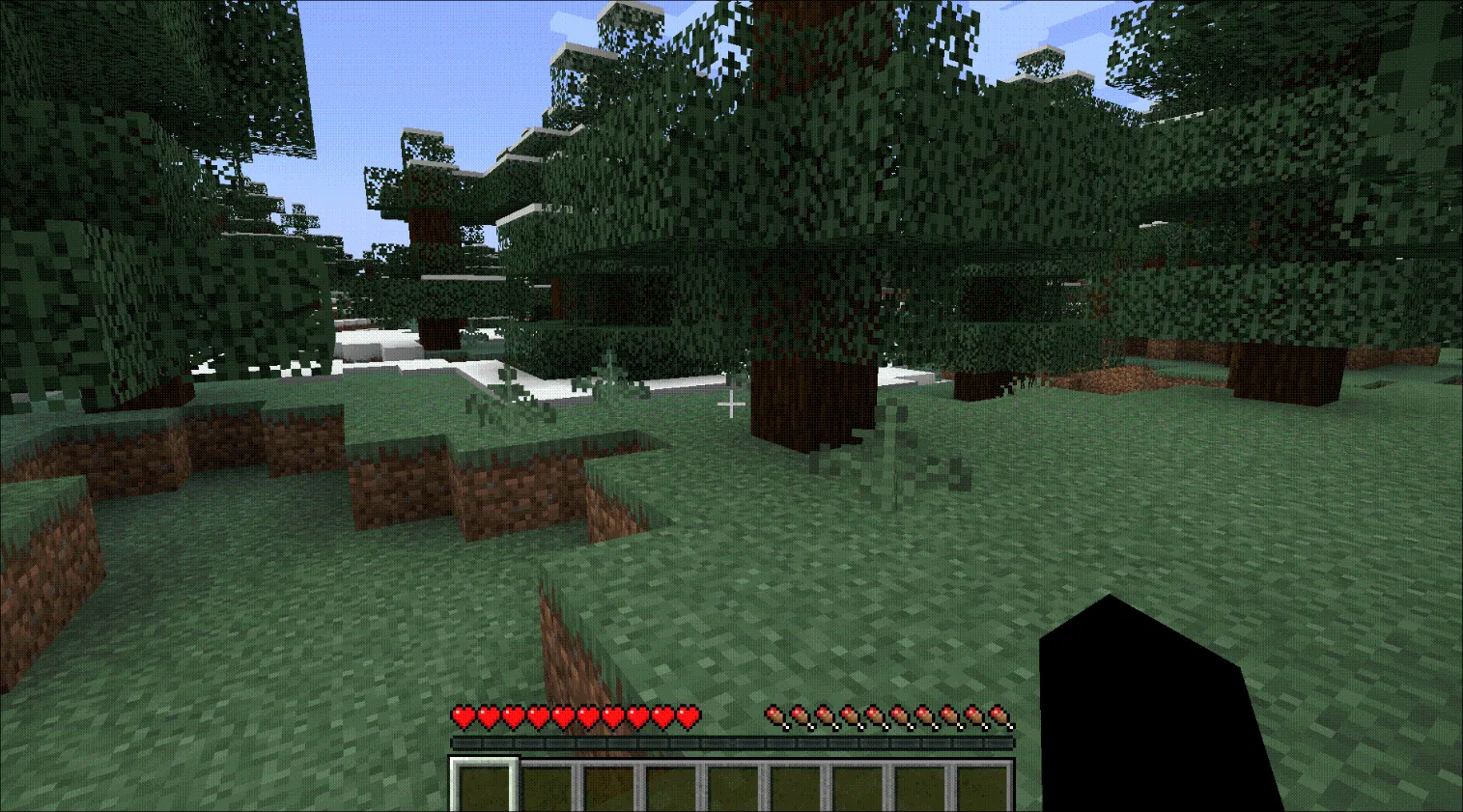
Final Step: Enter Minecraft and Join the Server
- Open Minecraft and go to “multiplayer game.”
- Add your server’s IP and click “finish.”
- Click on your server and join. Enjoy the game!
Conclusion
Setting up a Minecraft server on a VPS provides a shared gaming environment for you and your friends. Following these steps ensures a smooth installation and configuration process. Enjoy your Minecraft adventure!
References:
File Download Websites:
Author’s Note
I am not a Minecraft player, and I only started playing it last month. I have previously hosted a CS1.6 Server, and I thought it might be similar, but I encountered various problems while writing this article. The main issue was that I couldn’t run Minecraft due to insufficient RAM. I initially tried using 512MB of RAM, but it wasn’t sufficient. Realizing the RAM was inadequate, I attempted again, this time upgrading to 1GB of RAM, but it still didn’t work. Although the error messages were minor, a new error occurred after the last step. Finally, I used 2GB of RAM, and there were no more errors.
Minecraft really resource-intensive and expensive.