Comprehensive Guide to Installing Gentoo Linux with OpenRC
· Updated: Oct 20, 2023 · Gentoo, Linux Installation, OpenRC
Wowah, this article may be useless as it hasn't been updated in over 2 years. XDD
Introduction
Gentoo Linux is a distribution known for its flexibility, performance, and robustness. In this comprehensive guide, we will walk you through the process of installing Gentoo Linux step by step. By the end of this tutorial, you will have a fully functional Gentoo Linux system ready for your customization.
Notes: This article has only the most basic settings.
Prerequisites
Before embarking on the exciting journey of installing Gentoo Linux, it’s essential to ensure you have everything you need:
-
Linux Proficiency: You should be comfortable with Linux, know How linux working. and have experience with tasks like installing Arch Linux. While Gentoo is known for its flexibility, don’t know how the command working, otherwise the installation will be very painful. I think it will take at least one week to several weeks to install..
-
Stable Internet Connection: Gentoo requires downloading various packages and the Stage3 tarball during installation. Ensure you have a reliable and reasonably fast internet connection to expedite this process.
-
Hardware or Virtual Machine: Prepare a physical machine or set up a virtual machine (VM) where you intend to install Gentoo. Whether it’s real hardware or a virtual environment, Gentoo can adapt to your choice.
-
CPU cores: There are many CPU cores. You need to know that everything in Gentoo is built using source code and not pre-built, so the cpu is very important as it depends on the compilation speed of your computer.
Now, let’s get started with the installation process:
- Visit the Official Gentoo Website: Open your web browser and navigate to gentoo.org.
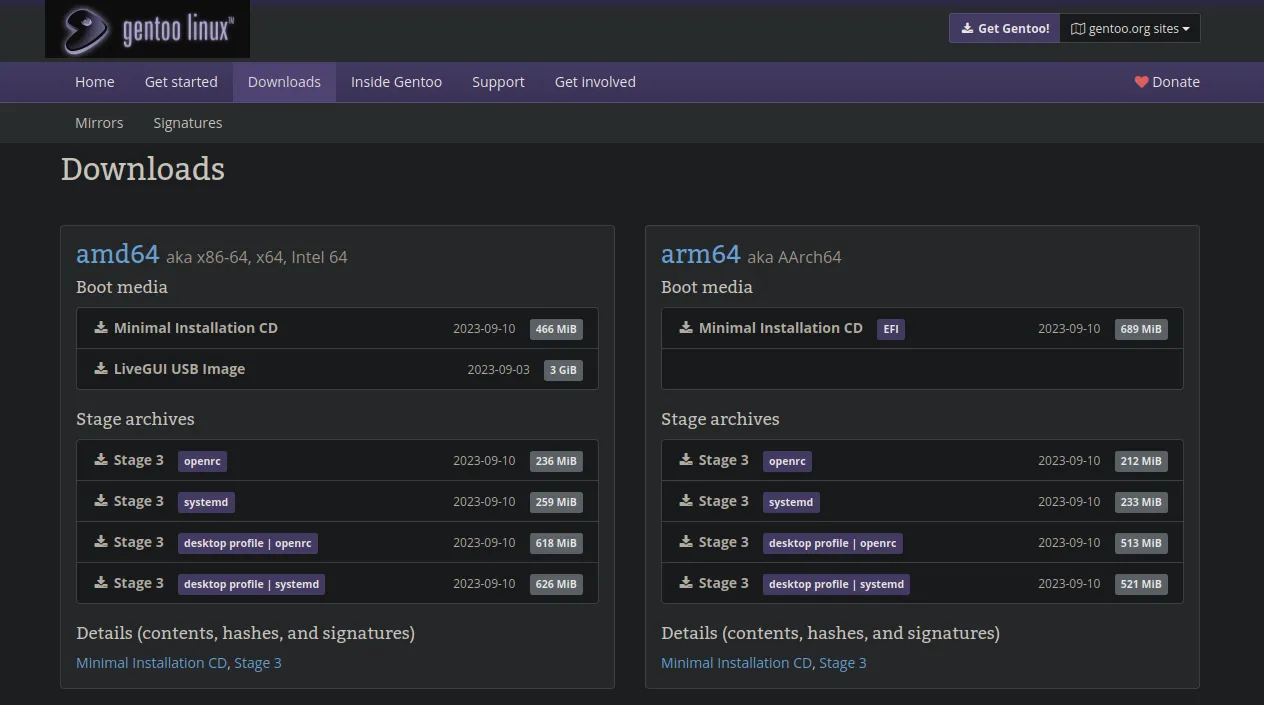
- Download the Minimal Installation CD: On the Gentoo download page, locate the “Minimal Installation CD (amd64)” option and click to initiate the download of the Gentoo ISO image.
With these prerequisites addressed, Lets Boot your ISO on your machine!
Step 1: Initial Setup
Before delving into the installation process, there are a few critical preliminary steps to ensure a smooth Gentoo Linux installation:
Choose Keyboard Layout
As you boot up the Gentoo Linux ISO, your first decision is to select the appropriate keyboard layout. The default setting is a US keyboard layout. To confirm this choice, simply press Enter.
Verify Internet Connectivity
ping gentoo.orgTo begin the Gentoo installation, it’s crucial to confirm that you have a working internet connection. You can quickly check this by running the following command. A successful response indicates that your network connection is functional and ready for the installation process.
List Available Block Devices
lsblkTo proceed with the installation, you need to identify the specific storage device where you’ll install Gentoo. The lsblk command provides a comprehensive list of available block devices on your system. Take note of the device you intend to use for the Gentoo installation.
Initialize GPT Partition Table
Now, let’s initialize the GUID Partition Table (GPT) on your chosen device:
gdisk /dev/vdaOnce inside the gdisk utility, follow these steps:
-
Type “o” to create a new GPT partition table. Please note that this action will erase all existing data on the selected device.
-
Press “n” to create a new partition. Specify the partition type as “ef00” (EFI system partition) and allocate a size of at least +1G. This partition is essential for EFI booting.
-
Use “n” once more to create another partition. Search for “swap” by specifying the code “8200” and allocate at least +10G in size for the swap partition.
-
Again, press “n” to create a partition. This time, allocate the remaining space for it. This partition will serve as the root filesystem.
-
Confirm the partition table by typing “p” to review its contents. Ensure that all partitions have been created correctly.
-
If everything appears as expected, save your changes by typing “w.” This action will write the new partition table to all partitions.
When defining partition sizes during GPT initialization, the + notation allows you to add space to the existing size.
Upon completion, your partition layout should resemble the following example (based on my configuration):
| Number | Size | Code | Name |
|---|---|---|---|
| 1 (vda1) | +1G (1024.0MiB) | ef00 | EFI system partition |
| 2 (vda2) | +10G (9.0 GiB) | 8200 | Linux swap |
| 3 (vda3) | All Remaining Space (90.0 GiB) | 8300 | Linux filesystem |
This sets the stage for the partitioning of your device to host the Gentoo Linux installation.
Step 2: Partitioning
In this step, you will create and format the necessary partitions for your Gentoo installation. These partitions will serve distinct roles, including EFI booting, housing the core filesystem, and providing swap space.
Format EFI Partition
To ensure your system supports EFI booting, the EFI partition needs to be correctly formatted with the FAT32 file system. Use the following command:
mkfs.fat -F32 /dev/vda1This command prepares the EFI partition (/dev/vda1) with the FAT32 file system, a requirement for EFI-based booting.
Format Root Partition
The root partition is where the core Gentoo filesystem will reside. Format it with the Btrfs file system using this command:
mkfs.btrfs /dev/vda3By running this command, you’re configuring the root partition (/dev/vda3) with the Btrfs file system, a modern and flexible choice for managing your Gentoo installation.
Create Swap Partition
Swap space is essential for memory management in your system. Begin by initializing the swap partition with this command:
mkswap /dev/vda2This command prepares the swap partition (/dev/vda2) for use in your Gentoo system.
Enable Swap
Activate the swap partition to make it available for use in your system:
swapon /dev/vda2This step ensures that your Gentoo installation can effectively manage system memory.
Create a Mount Point
Before proceeding, create the required directory structure for your Gentoo filesystem:
mkdir --parents /mnt/gentooThis command establishes the necessary directory structure within the /mnt directory, specifically the /mnt/gentoo directory, which will serve as the mount point for your Gentoo installation.
Mount the Root Partition
Now, it’s time to associate the root partition with the mount point:
mount /dev/vda3 /mnt/gentooBy executing this command, you’re linking your Gentoo root partition (/dev/vda3) with the /mnt/gentoo directory. This association allows you to access and configure the contents of your Gentoo installation within this directory. It’s a pivotal step in setting up your Gentoo Linux system.
Step 3: Setting the System Clock
Now, ensuring your system’s clock is accurate is crucial. An incorrect system time can cause download errors and lead to issues post-installation. Here’s a quick guide on how to verify and set the date and time in Gentoo.
Checking Current Date and Time
Firstly, check your system’s date and time by running the date command:
dateif the displayed date and time are significantly off, it needs to be corrected.
Automatic Time Sync
Automatic time synchronization using a time server is the best option. Gentoo’s official live environments include the chronyd command, which can sync your system clock to UTC time using a time server. (ntp.org) Note that this method requires a working network configuration.
Warning: Automatic time sync reveals your system’s IP address to the time server.
chronyd -qManual Time Setting
The date command can manually set the system clock. Use the following format: MMDDhhmmYYYY (Month, Day, Hour, Minute, and Year).
date <MMDD><hhmm><YYYY>Set the system clock to the current date and time by replacing <MMDD><hhmm><YYYY> with the appropriate values.
Example for Setting day
To set the date to Friday October 20, 16:40:
102016402023Now, it’s time to download Stage3 Tarball.
Step 4: Downloading the Stage3 Tarball
Navigate to the Installation Directory
Begin by changing your working directory to /mnt/gentoo, which is where you’ll install Gentoo. This location serves as the foundation for your Gentoo Linux system.
cd /mnt/gentooDownload the Stage3 Tarball
The Stage3 tarball is a crucial component of your Gentoo installation, containing the base system files. To obtain it, we’ll use the text-based web browser called links. Follow these steps to access the official Gentoo website and download the Stage3 tarball tailored to your architecture:
-
Launch
linksby typinglinksinto the terminal and pressing Enter. -
In
links, entergto access the URL prompt, and then type the URL for gentoo.org. -
Once you’ve entered the Gentoo website, navigate to the Stage3 tarball download section. Look for the appropriate Stage3 OpenRC file corresponding to your architecture (e.g., amd64).
-
Select the desired tarball file, initiate the download process, and save it to your system.
-
After the download completes successfully, exit the
linksprogram by pressingctrl+c.
With these actions, you’ve obtained the necessary Stage3 tarball, a foundational component for your Gentoo Linux installation. This tarball provides the core system files required to build and customize your Gentoo environment.
Step 5: Extract the Tarball
Once you’ve downloaded the Gentoo system, it’s time to extract it.
Please Ensure you include the following options. This very important
Extract the Tarball
tar xpvf stage3-*.tar.xz --xattrs-include='*.*' --numeric-ownerUnpacking the Stage3 tarball using this command sets up the groundwork for your Gentoo system.
Delete tar file
After successfully extracting the Gentoo system, you can safely delete the tarball.
rm -rfv stage3-*.tar.xzStep 6: Configuring make.conf
Gentoo Linux is renowned for its customization potential, offering users the ability to compile and configure their systems according to specific needs. In this step, we’ll focus on enhancing compilation speed, refining the aesthetics of terminal output and GPU Support.
Edit make.conf
nano /mnt/gentoo/etc/portage/make.confOpen the make.conf file for customization. This file holds crucial configuration options for the Portage package manager, providing a platform for tailoring your system to your preferences.
Fine-Tune Compiler Flags
COMMON_FLAGS="-march=native -O2 -pipe"
FEATURES="candy parallel-fetch parallel-install"
MAKEOPTS="-j20"
Within make.conf, you can set compiler flags to optimize system performance. Adjust these flags to align with your CPU architecture and personal preferences.
Understanding the Flags
In Gentoo Linux, make.conf is a pivotal configuration file enabling you to optimize software package compilation and overall performance. The following flags offer customization options:
COMMON_FLAGS="-march=native -O2 -pipe"
-march=native: Directs the compiler to generate code tailored to your system’s CPU architecture, automatically detecting your CPU type during compilation for optimized performance.-O2: Sets the optimization level for the compiler.-O2strikes a balance, improving code execution speed without significantly increasing compilation time.-pipe: Enables the use of pipes instead of temporary files for communication between different compilation stages, streamlining the process and reducing disk I/O.
FEATURES="candy parallel-fetch parallel-install"
candy: Potentially a custom or project-specific feature that may not be standard in all Gentoo installations, possibly related to additional optimizations or project-specific features.parallel-fetch: When enabled, permits Portage to download source code and files for packages concurrently, expediting the package installation process.parallel-install: Allows Portage to install multiple packages concurrently, particularly advantageous on systems with multiple CPU cores.
MAKEOPTS="-j20"
-j20: Specifies the number of parallel compilation jobs Portage can run simultaneously, allowing up to 20 parallel jobs. Adjust this value based on your system’s CPU core count.
GPU Support
To ensure optimal performance and compatibility with your hardware, consider adding the following configurations for mouse, keyboard, and GPU support in your Gentoo system.
Mouse, Keyboard, and Synaptics Touchpad Support:
INPUT_DEVICES="libinput synaptics"NVIDIA Cards:
VIDEO_CARDS="nouveau"Support for AMDGPU, RadeonSI, and AMD/ATI Cards:
VIDEO_CARDS="amdgpu radeonsi radeon"These configurations provide comprehensive support for input devices and graphics cards on your Gentoo system. Customize these settings based on your specific hardware and preferences, ensuring a seamless and optimized computing experience.
Step 7: Repository Configuration
In this step, we establish the necessary configuration for managing package repositories using Portage, Gentoo’s package manager. This allows you to define additional repositories beyond the defaults.
Create the repos.conf Directory
To begin, create the repos.conf directory within the /mnt/gentoo/etc/portage/ path:
mkdir --parents /mnt/gentoo/etc/portage/repos.confThis directory is crucial for housing repository configurations.
Copy Default Repository Configuration
Next, duplicate the default Gentoo repository configuration to ensure Portage can locate software packages. Execute the following command:
cp /mnt/gentoo/usr/share/portage/config/repos.conf /mnt/gentoo/etc/portage/repos.conf/gentoo.confThis command copies the default repository settings from their typical location in /usr/share/portage/config/repos.conf to the specific location /mnt/gentoo/etc/portage/repos.conf/gentoo.conf. By doing this, you provide Portage with the necessary information to access software repositories.
Step 8: Network Configuration files
Same, In Gentoo network configuration is not set up by default, so you’ll need to configure it manually to ensure proper network connectivity within your Gentoo environment. Follow these steps to set up your network.
Copy the Host System’s resolv.conf
Begin by copying the DNS resolver configuration from the host system to your Gentoo environment:
cp --dereference /etc/resolv.conf /mnt/gentoo/etc/The /etc/resolv.conf file on the host system contains essential DNS resolver settings, enabling domain name resolution. By copying it to /mnt/gentoo/etc/, you ensure that Gentoo can also resolve domain names correctly. This step is crucial for maintaining consistent and reliable internet connectivity within your Gentoo installation.
Setting up network configuration correctly is essential for various system functions and software package management. This step ensures that your Gentoo environment can access the internet and external resources as needed.
Step 9: Mounting System Directories
In this section, we mount essential system directories within the Gentoo environment. These directories play critical roles in the functioning of the Linux system.
Mount /proc
mount --types proc /proc /mnt/gentoo/procThe /proc directory provides a virtual filesystem that exposes information about running processes and the kernel’s internal state. Mounting it within the Gentoo environment is essential for various system utilities and commands to retrieve process-related information.
Mount /sys
mount --rbind /sys /mnt/gentoo/sys
mount --make-rslave /mnt/gentoo/sys
The /sys directory offers a view into the kernel’s internal data structures and provides a way to interact with device drivers and kernel parameters. By mounting /sys with the --rbind option and making it a slave of /mnt/gentoo/sys, we ensure that the Gentoo environment can access kernel and hardware information, facilitating system configuration and management.
Mount /dev
mount --rbind /dev /mnt/gentoo/dev
mount --make-rslave /mnt/gentoo/dev
The /dev directory is crucial for device interaction. It contains special files representing hardware devices and facilitates device-related operations. Mounting /dev with the --rbind option and making it a slave of /mnt/gentoo/dev ensures that the Gentoo environment can access and manage devices effectively.
Mount /run
mount --bind /run /mnt/gentoo/run
mount --make-slave /mnt/gentoo/run
The /run directory is essential for the proper functioning of various system services and daemons. It stores runtime information, including sockets and process IDs. Mounting /run and making it a slave of /mnt/gentoo/run ensures that system services within the Gentoo environment can operate as expected, contributing to a smoothly running system.
Step 10: Chrooting into the New Environment
Now that your Gentoo system is prepared and mounted, it’s time to enter the new environment and start configuring it further, Follow these steps to chroot into the new environment:
Enter the Chroot Environment
Execute the following command to enter the chroot environment, where you will perform system configurations and installations:
chroot /mnt/gentoo /bin/bashThis command initiates a process called “chrooting,” which stands for “change root.” It allows you to transition into the newly installed Gentoo environment as if it were your root directory. After running this command, any further commands you execute will affect the Gentoo environment, not the host system.
Apply Profile
After entering the chroot environment, it’s essential to load the system-wide profile settings from /etc/profile. This step ensures that all necessary environment variables and system configurations are in place, allowing you to work effectively within the Gentoo system. Execute the following command:
source /etc/profileThis command ensures that the profiles are applied correctly to your newly installed Gentoo system.
Chrooting into the new environment is a critical step in the Gentoo installation process, as it allows you to perform essential configurations and installations within the Gentoo environment itself. It’s the point at which you transition from setting up the installation environment to configuring the actual Gentoo system.
Step 11: EFI Partition (UEFI Users)
Now, is time to mount your EFI Partitoin for your /boot, this important for your booting into your gentoo system. Follow these step:
Create the EFI Directory
For users installing Gentoo on a UEFI (Unified Extensible Firmware Interface) system, creating the EFI directory is a crucial preparatory step. Here’s what each component means:
mkdir /efi: This command creates a directory named “efi” at the root of the file system. This directory will serve as the mounting point for the EFI system partition (ESP).
mkdir /efiUEFI-based systems use the EFI system partition to store bootloader files and related information required for the boot process. By creating this “efi” directory, we establish the location where we will later mount the EFI partition.
Mount the EFI Partition
After creating the “efi” directory, we proceed to mount the EFI partition onto this directory:
mount /dev/vda1 /efimount /dev/vda1 /efi: This command instructs the system to mount the EFI partition, which is typically identified as/dev/vda1, onto the/efidirectory. Mounting the EFI partition in this way ensures that the UEFI firmware can locate and access the necessary bootloader files and configuration data during the system’s boot process.
In summary, this step is crucial for UEFI-based systems, as it sets up the directory structure and mounting point needed for successful UEFI booting, allowing Gentoo Linux to start correctly in such environments.
Step 12: Initial Configuration
In this step, we’ll perform the initial configuration for your Gentoo system. Synchronizing your file system.
Synchronize Portage Tree
On your first Gentoo installation, it’s essential to synchronize your Portage tree database. You can achieve this by running the following command:
emerge-webrsync- The
emerge-webrsynccommand is a crucial step in keeping your Gentoo system up to date. It initiates the synchronization of the Portage tree, which is a critical component responsible for managing packages and their metadata. Synchronizing the Portage tree ensures that your system has access to the latest package information and updates. Please be patient, as this process may take some time. You can use this time for a break or grab a meal while it completes.
Read Gentoo News
One of the interesting features of Gentoo is the ability to read package news using the eselect command. After completing the Portage tree synchronization, you can use the following command to stay informed about important Gentoo news:
eselect news read- The
eselect news readcommand allows you to access and read package news, which provides updates and information about changes within the Gentoo system. Staying up-to-date with Gentoo news is essential for understanding system updates and being aware of potential issues or important changes.
Gentoo’s flexibility and features, such as the ability to read package news, make it a unique and powerful Linux distribution for experienced users.
Update the System Profile
In this step, we will install the packages listed in your world file, and for that, we need to select an appropriate system profile.
List Available System Profiles
Begin by listing the available system profiles with the following command:
eselect profile list- The
eselect profile listcommand provides you with a list of available system profiles. Each profile defines specific settings and configurations for your Gentoo system. You can choose from various profiles based on your requirements and preferences.
Set a System Profile
Next, select a system profile that aligns with your needs using the eselect profile set command. Replace the number “5” in the command below with the profile number you want to set:
eselect profile set 5- Using the
eselect profile setcommand, you can choose a system profile that best matches your desired system configuration. Keep in mind that the available profiles may vary, so select the one that suits your requirements.
Confirm the Selected Profile
Finally, it’s essential to confirm that the correct system profile has been selected. This verification step ensures that your Gentoo system is configured as intended and aligns with your chosen specifications. Use the following command to confirm the selected profile:
eselect profile listBy following these steps, you ensure that your Gentoo system is configured with the appropriate profile, setting the stage for a well-customized and efficient environment.
Selecting Fast Mirrors for Source Downloads (Optional)
To optimize your source downloads and ensure a swift installation process, choosing a fast mirror is highly recommended. Portage, Gentoo’s package manager, relies on the GENTOO_MIRRORS variable in the make.conf file to determine the mirrors to use. Here’s how you can conveniently select mirrors using the mirrorselect tool:
Using mirrorselect Tool
-
Install
mirrorselectTool: Ensure you have themirrorselecttool installed. If not, you can install it using:emerge --ask app-portage/mirrorselect -
Run
mirrorselect: Execute the following command to initiatemirrorselect:mirrorselect -i -o >> /etc/portage/make.confThis command queries the available mirrors and appends the selected mirrors to your
make.conffile, optimizing your source downloads. -
Selecting Mirrors:
- Use the arrow keys to navigate to your preferred mirror(s) in the list displayed.
- Press the
spacebarto select one or more mirrors. - Once selected, press
Enterto confirm your choice(s).
By using mirrorselect, you ensure that Portage fetches packages from nearby mirrors, significantly enhancing download speeds. This step is optional but highly recommended for a smoother Gentoo installation experience.
Step 13: Updating the System
Now, let’s proceed with updating your Gentoo system, which involves updating all installed packages, resolving dependencies, and potentially compiling new package versions.
Update the System
Run the following command to update the entire system, including packages:
emerge --ask --verbose --update --deep --newuse @world- The
emerge --ask --verbose --update --deep --newuse @worldcommand performs a comprehensive system update. It checks for updates to all installed packages, resolves dependencies, and considers any new USE flags (--newuse). This ensures that your Gentoo system is up to date with the latest software versions and security patches.
Cleanup
After the system update, you can optimize your Gentoo system by removing unnecessary dependencies and packages:
emerge --depcleanThe emerge --depclean command helps free up disk space and improve system performance by removing packages that are no longer needed after the update.
Step 14: Licensing
Software licenses play a crucial role in Gentoo, as they determine which software can be installed based on your acceptance or rejection of these licenses. By default, Gentoo requires you to manually configure your license preferences. Here, we’ll set up Gentoo to accept all licenses, but you can customize this based on your preferences.
Edit make.conf
To customize your license acceptance preferences, you need to add a line to your make.conf file. You can do this using a single command or by manually editing the file.
Option 1: Adding the Line Automatically
Run the following command to add the necessary line to your make.conf file:
echo 'ACCEPT_LICENSE="*"' >> /etc/portage/make.confThis command appends the line ACCEPT_LICENSE="*" to your make.conf file, which indicates that you accept all licenses for packages. It allows you to install any software without being restricted by license agreements. However, please exercise caution and ensure that you comply with the licenses of the software you install, as some licenses may have specific requirements.
Option 2: Manual Editing
Alternatively, you can manually edit your make.conf file and add the following line:
ACCEPT_LICENSE="*"By setting ACCEPT_LICENSE="*", you configure Gentoo to accept all licenses, thereby enabling the installation of software without license-based restrictions.
Customizing your license acceptance preferences in Gentoo provides flexibility while also ensuring that you comply with software licenses. Make sure to choose the option that aligns with your licensing preferences and requirements.
Step 15: Time Zone Configuration
Configuring the correct time zone is essential for your system to maintain accurate time settings. Follow these steps to set up your time zone in Gentoo:
List Available Time Zones
Begin by listing the available time zones to find the one that corresponds to your region. You can use the following command to list the available time zone files:
ls /usr/share/zoneinfo/This command provides a list of available time zone files. You’ll need to choose the one that represents your region.
Set Time Zone
Once you’ve identified the time zone file that matches your location, you can set your system’s time zone by adding a line with the chosen time zone file path. For example, if your time zone is “Asia/Taipei,” use the following command:
echo "Asia/Taipei" > /etc/timezoneNotes: Replace “Asia/Taipei” with the path to your specific time zone file.
This command specifies your preferred time zone, ensuring that your Gentoo system displays the correct local time.
Configure Time Zone Data
To complete the time zone configuration, you need to configure the time zone data to align with your chosen time zone. Use the following command to perform this configuration:
emerge --config sys-libs/timezone-dataRunning emerge --config sys-libs/timezone-data ensures that your system’s time settings are accurate and synchronized with your selected time zone.
Step 16: Locale Configuration
Configuring the correct locale settings is crucial for defining your system’s language and regional preferences. Follow these steps to set up your locale configuration in Gentoo:
Edit locale.gen
-
Uncomment Locale Settings: Begin by uncommenting the locale settings that match your preferred language and regional settings. Use a text editor to open the
locale.genfile, for example:nano /etc/locale.genWithin the
locale.genfile, you can enable the desired locales by removing the#symbol in front of them. Locales define language and regional settings.
Generate Locales
-
Generate Locales: After you’ve uncommented and saved the changes to the
locale.genfile, you can generate the specified locales using the following command:locale-genRunning
locale-gengenerates the locales that you specified in thelocale.genfile. These locales support different languages and regional settings, allowing you to configure your system for multiple languages if needed.
List Available Language Options
-
List Available Language Options: To verify that the desired locales have been successfully generated, you can list the available language options using the following command:
eselect locale listThe
eselect locale listcommand provides you with a list of available locales, helping you confirm that your system can support your chosen language and region.
Set Default Locale
-
Set Default Locale: To set the default locale for your system, use the
eselect locale setcommand followed by the number associated with your preferred locale. For example, to set the default locale to “en_US.utf8,” you might use:eselect locale set 6The exact locale number may vary depending on your system’s available options. Adjust this setting according to your language and regional preferences.
Update Environment Variables
-
Update Environment Variables: Finally, update the environment variables and apply the changes to the system’s locale settings with the following commands:
source /etc/profile
env-update
Running
source /etc/profileensures that the changes to the locale settings take effect. It’s an essential step to make sure your system correctly uses the specified language and regional settings.
By following these steps, you can customize your Gentoo system’s language and regional settings, tailoring it to your specific language preferences and requirements.
env-update
In Gentoo Linux, the env-update command plays a vital role in synchronizing system settings configured in various files with the actual runtime environment of your system. It ensures that changes made to important configuration files are immediately reflected in the environment, enabling the system to function correctly based on the updated settings.
Here’s how env-update works:
-
Configuration File Inspection:
env-updatescans critical configuration files across your Gentoo system. These files contain essential system-wide settings, such as locales, paths, and various variables that influence system behavior. -
Environment Variable Update: Based on the information gathered from the configuration files,
env-updatetakes action to update the environment variables of the system. These environment variables are essential as they dictate how processes and applications should behave. -
Instantaneous Impact: One of the key benefits of
env-updateis that it enacts changes instantly. There’s no need to reboot your system or log in and out for the updates to take effect. This means that the updated settings become immediately available to all processes and users on the system.
To illustrate its importance, consider the locale configuration discussed earlier. After configuring locales in Gentoo, running env-update ensures that your chosen language and regional settings are consistently applied across all applications and processes without any delay.
In summary, env-update serves as a critical bridge between the static configuration files and the dynamic runtime environment of Gentoo Linux. Its role is fundamental in maintaining system-wide consistency and facilitating the swift application of system-wide changes.
Step 17: Firmware and Kernel
This step involves installing essential firmware and the Gentoo kernel to ensure proper hardware support and system functionality.
Install Firmware
-
Install Firmware Packages:
emerge --ask sys-kernel/linux-firmwareStart by installing the necessary firmware packages required for effective hardware support. These packages provide essential firmware files for various hardware components.
-
Intel CPU Microcode (Optional):
emerge --ask sys-firmware/intel-microcodeIf you have an Intel CPU, consider installing Intel microcode updates. These updates enhance CPU performance and security by addressing microcode vulnerabilities. Ensure that your CPU is supported before installing this package.
Install Gentoo Kernel
-
Install Gentoo Kernel:
emerge --ask sys-kernel/gentoo-kernelInstall the Gentoo kernel, a critical component of your Gentoo Linux system. The kernel serves as the core of the operating system, providing essential hardware support and system functionality.
-
List Available Kernels:
eselect kernel listList the available kernels to help you select the appropriate one for your system. This step is crucial to ensure that you choose the correct kernel configuration that matches your hardware and requirements.
Installing firmware and the Gentoo kernel is vital for the proper functioning of your Gentoo Linux system, ensuring that it’s equipped with the necessary hardware support and system core.
Step 18: Filesystem Configuration
In this step, you will configure your filesystem by editing the /etc/fstab file, which contains information about how various partitions are mounted and used by your system.
Edit /etc/fstab
Open the /etc/fstab file for editing using a text editor, such as Nano:
nano /etc/fstabInside the /etc/fstab file, add entries for different partitions based on your system configuration. Here’s an example of what the entries might look like:
# EFI Partition
/dev/vda1   /efi        vfat    defaults    0 2

# Swap Partition
/dev/vda2   none        swap    sw          0 0

# Root Partition
/dev/vda3   /           btrfs   defaults,noatime  0 1
Here’s an explanation of each entry:
/dev/vda1is mounted at/efiand uses the VFAT filesystem./dev/vda2is designated as a swap partition./dev/vda3is mounted as the root directory and uses the Btrfs filesystem. It also specifies mount options, such as “defaults” and “noatime.”
Ensure that you adjust these entries to match your actual disk partitioning and filesystem choices. Properly configuring /etc/fstab is essential for ensuring that your system mounts and utilizes partitions correctly during startup and operation.
Step 19: Setting Network Information
In this step, you will configure network-related settings to ensure proper communication and connectivity on your Gentoo Linux system. Each command provided is independent of the others.
Edit the Hosts File
nano /etc/hostsnano /etc/hosts: Use this command to open and edit the/etc/hostsfile. This file is responsible for mapping hostnames to IP addresses and is crucial for network communication.
Add the following lines to the file:
127.0.0.1   gentoo   localhost
::1         localhost
These lines define the loopback address (127.0.0.1) and the IPv6 loopback address (::1) with corresponding hostnames. The “gentoo” hostname is associated with the loopback address.
Set the Hostname
echo gentoo > /etc/hostnameecho gentoo > /etc/hostname: Use this command to set the hostname of your Gentoo system. In this example, the hostname is set to “gentoo.” Make sure to replace “gentoo” with your desired hostname if needed.
Install and Configure DHCP
emerge --ask net-misc/dhcpcdemerge --ask net-misc/dhcpcd: This command installsdhcpcd, a DHCP (Dynamic Host Configuration Protocol) client, which is essential for automatically configuring network interfaces.
rc-update add dhcpcd defaultrc-update add dhcpcd default: Adddhcpcdto the list of services that start automatically at boot. This ensures that the DHCP client service runs during system startup, enabling automatic network configuration.
rc-service dhcpcd startrc-service dhcpcd start: Use this command to start thedhcpcdservice immediately. It will configure network interfaces and establish network connectivity.
By following these steps, you’ve configured network-related settings on your Gentoo Linux system, including hostname setup, host file editing, and the installation and configuration of a DHCP client for automatic network configuration. Your system should now be ready to communicate over the network.
Step 20: Network Configuration
Configuring your network correctly is essential for proper system functionality. Follow these steps to configure your network interfaces in Gentoo:
Identify Network Interfaces
Use the following command to identify the names of available network interfaces on your system, including both active and inactive interfaces:
ifconfig -aThis command will display a list of network interfaces, helping you determine the correct interface name that you need for configuration.
Configure Network Interfaces
Edit the network interface configurations in the /etc/conf.d/net file to suit your specific network requirements. You can use a text editor like Nano for this purpose:
nano /etc/conf.d/netInside the /etc/conf.d/net file, configure your network interfaces as needed. For example, you can set up DHCP for your Ethernet interface or configure static IP addresses. Here’s an example configuration for DHCP:
config_enp1s0="dhcp"Replace “enp1s0” with the actual name of your network interface. Adjust the configuration based on your network setup.
Create a Symbolic Link
Navigate to the /etc/init.d/ directory, which is used for managing system services:
cd /etc/init.d/Create a symbolic link for your network interface, simplifying its management:
ln -s net.lo net.enp1s0Replace “enp1s0” with the actual name of your network interface.
Start Network Interface at Boot
Ensure that the network interface starts automatically with the system by adding it to the default runlevel:
rc-update add net.enp1s0 defaultMake sure to replace “enp1s0” with the correct interface name for your system configuration.
By following these steps, you’ll properly configure your network interfaces in Gentoo, ensuring that they start automatically and provide stable connectivity for your system.
Step 21: Setting the Root Password
Securing your Gentoo system starts with setting a strong and secure root password. The root account is a powerful administrative account that should only be accessed by authorized users when necessary. Follow these steps to set the root password:
Set Root Password
To set a secure root password, use the passwd command:
passwdAfter entering this command, you’ll be prompted to enter and confirm your new root password. Make sure to choose a password that is both strong and memorable. A strong password typically includes a combination of uppercase and lowercase letters, numbers, and special characters. It’s important to keep this password confidential and not share it with unauthorized users.
Setting a strong root password is a critical security measure for your Gentoo system, as it helps protect your system from unauthorized access and ensures that only trusted users can perform administrative tasks.
Step 2: File System Support
To effectively manage various filesystems on your Gentoo system, it’s important to have the necessary tools and utilities installed. This step focuses on installing sys-fs/btrfs-progs and sys-fs/dosfstools to support Btrfs and DOSFAT filesystems, respectively. Follow these instructions to ensure you have the required filesystem support:
Install Btrfs Tools
Btrfs is a modern and feature-rich filesystem that offers benefits like snapshots and data integrity. To manage Btrfs filesystems on your Gentoo system, you’ll need the btrfs-progs package. Use the following command to install it:
emerge -av sys-fs/btrfs-progsThis command will install the Btrfs tools, enabling you to create, manage, and maintain Btrfs filesystems on your Gentoo installation.
Install DOSFAT Tools
DOSFAT (also known as FAT) is a filesystem format commonly used for removable storage devices such as USB drives and SD cards. To interact with DOSFAT filesystems on your Gentoo system, you’ll need the dosfstools package. Use the following command to install it:
emerge -av sys-fs/dosfstoolsInstalling dosfstools provides utilities like mkfs.fat for formatting DOSFAT filesystems and fsck.fat for checking and repairing them.
With both sys-fs/btrfs-progs and sys-fs/dosfstools installed, your Gentoo system will have comprehensive filesystem support, allowing you to work with a variety of filesystem formats as needed. This flexibility is essential for managing data on different storage devices and maintaining the integrity of your files.
Step 23: Configuring the GRUB Bootloader
Configuring the GRUB bootloader is a crucial step in setting up your Gentoo Linux system for booting. GRUB (GRand Unified Bootloader) is responsible for managing the boot process and allows you to choose which operating system to start. In this step, we’ll configure and install GRUB for your Gentoo installation.
Edit make.conf for GRUB
First, we need to specify the GRUB platform as “efi-64” in your make.conf file. This is essential for systems that use EFI for booting. To do this, execute the following command:
echo 'GRUB_PLATFORMS="efi-64"' >> /etc/portage/make.confThis command appends the GRUB_PLATFORMS setting to your make.conf file, ensuring that GRUB is configured correctly for EFI booting.
Install GRUB
Now that we’ve configured GRUB, we need to install it on your system. Use the following command to install the GRUB bootloader:
emerge --ask --verbose sys-boot/grubThis command tells Gentoo’s package manager, Portage, to install the sys-boot/grub package, which includes the GRUB bootloader.
Install GRUB to the EFI Partition
To ensure that your system can boot using the UEFI firmware, we’ll install GRUB to the EFI partition. Use the following command to accomplish this:
grub-install --target=x86_64-efi --efi-directory=/efiThis command installs GRUB for the x86_64 EFI target architecture and specifies the EFI directory as /efi. It ensures that the necessary GRUB files are placed in the EFI partition, making them accessible to the UEFI firmware during the boot process.
Generate the GRUB Configuration File
The final step in configuring GRUB is to generate the GRUB configuration file, grub.cfg. This file contains the menu entries and settings required for booting into your Gentoo installation. Use the following command to generate the configuration file:
grub-mkconfig -o /boot/grub/grub.cfgThis command creates the grub.cfg file in the /boot/grub directory. It detects the installed operating systems and generates a boot menu based on the available options.
With these configurations and tools in place, your Gentoo Linux system is well-prepared for use. The GRUB bootloader is set up to handle the boot process, allowing you to select Gentoo Linux or other operating systems when you start your computer. You’re now ready to finalize the installation and configure your user account.
Step 24: Unmounting Partitions
As you near the completion of your Gentoo Linux installation, it’s essential to unmount the various partitions and directories associated with the installation process. This ensures that your system is prepared for a clean and successful reboot.
exit
cd ~
Unmounting Specific Directories
To begin, unmount specific directories within the Gentoo installation by executing the following command:
umount -l /mnt/gentoo/dev{/shm,/pts,}umount -l /mnt/gentoo/dev{/shm,/pts,}: This command unmounts several directories within the Gentoo installation, including/dev,/dev/shm, and/dev/pts. Unmounting these directories is essential to detach them from the installation environment.
Unmounting the Entire Gentoo Installation
Next, unmount the entire Gentoo installation from the /mnt/gentoo directory using the following command:
umount -R /mnt/gentooumount -R /mnt/gentoo: This command recursively unmounts all filesystems and directories within the/mnt/gentoodirectory. It ensures that every component of the Gentoo installation is properly detached from the system.
Step 25: Reboot Your System
With all the necessary unmounting completed, it’s time to reboot your system to initiate the use of the newly installed Gentoo Linux.
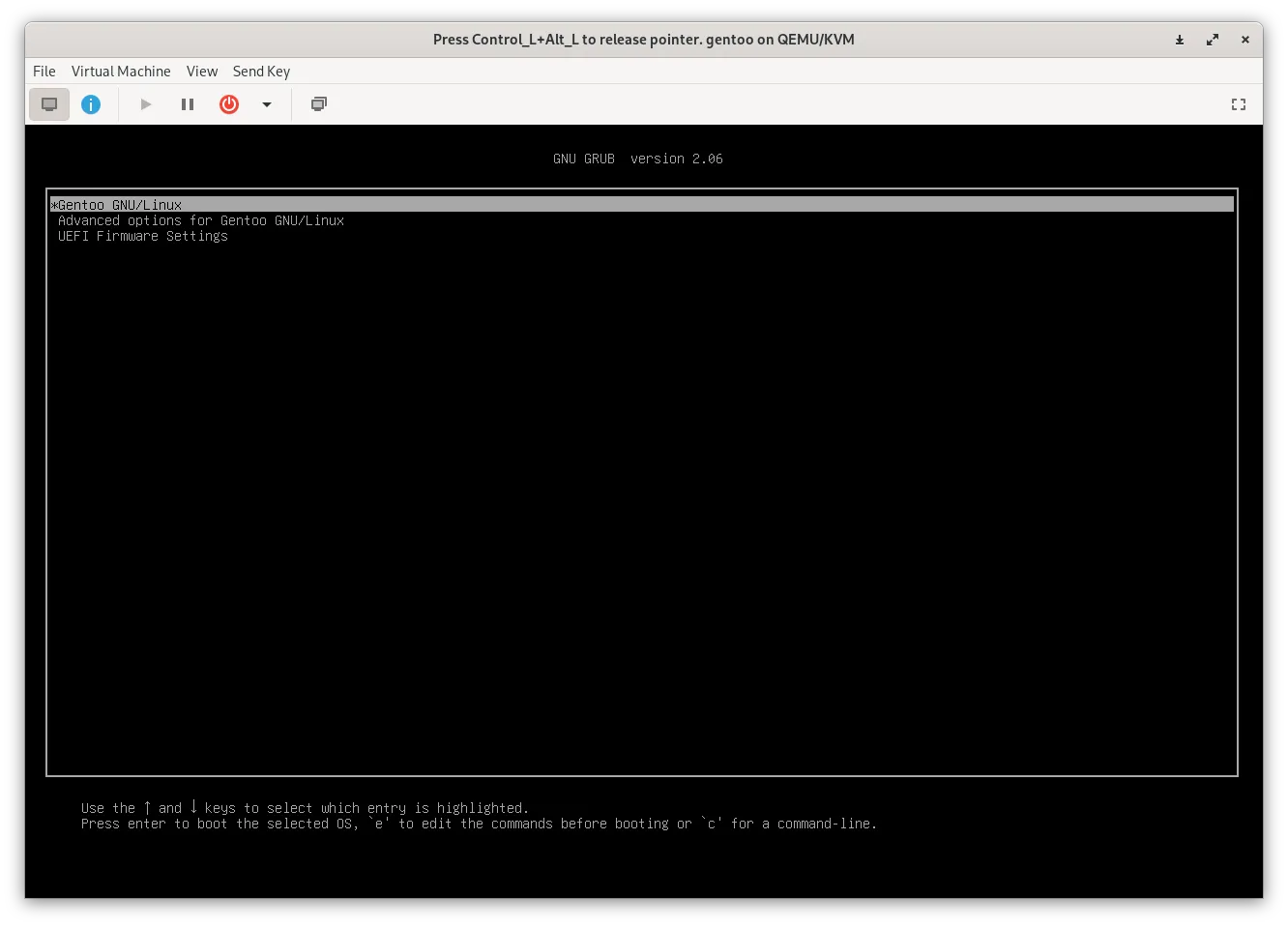
rebootreboot: Execute this command to reboot your system gracefully. After the reboot, you’ll encounter the GRUB menu, which allows you to select your desired operating system. Use the arrow keys to highlight “Gentoo” and then press Enter to boot into your freshly installed Gentoo Linux system.
Rebooting is the final step in the installation process, and once your system restarts, you’ll have access to your new Gentoo Linux environment. Congratulations on successfully installing Gentoo!
Final Step: Testing Your System
Congratulations! You’ve successfully installed Gentoo Linux, and now it’s time to test your system to ensure everything is working as expected.
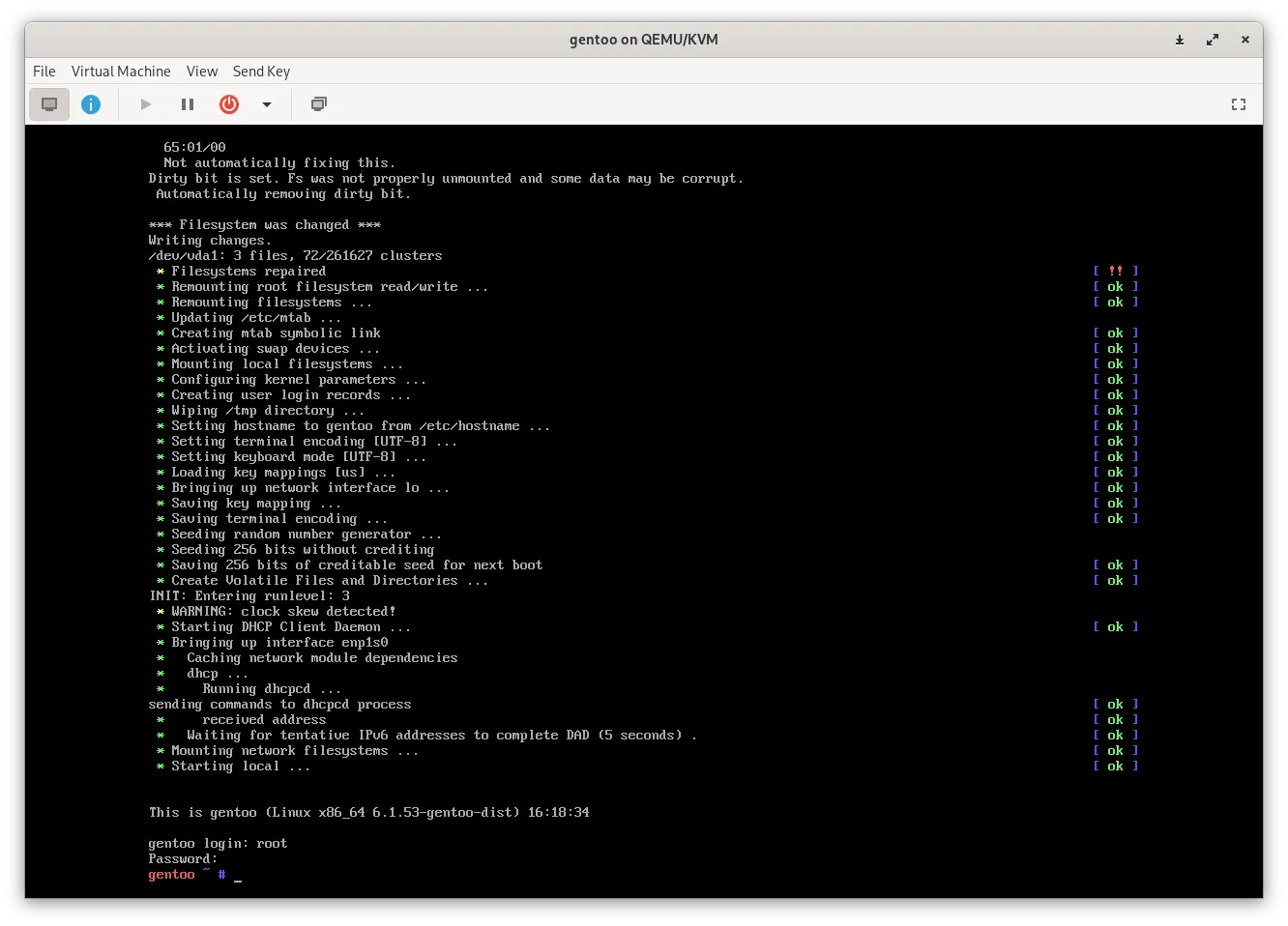
Login your system
Once your system has rebooted, you should see the login prompt. Log in using the username and password you configured during the installation process.
Conclusion
Congratulations! You’ve successfully installed Gentoo Linux with using the OpenRC init system. This installation process, although detailed, provides you with a highly customizable and optimized Linux system tailored to your specific needs.
Throughout this comprehensive guide, you’ve learned how to:
- Set up the initial environment and prerequisites.
- Create and format partitions.
- Set up the system clock and download the Stage3 tarball.
- Configure important files like
make.confand/etc/fstab. - Set the hostname and configure network settings.
- Install essential software and firmware.
- Configure the bootloader (GRUB for UEFI systems).
Gentoo Linux’s source-based package management system, Portage, allows you to fine-tune your system to your liking and keep it up to date. While the installation process may be intricate, the result is a highly customizable and efficient Linux distribution that can be tailored to your specific use cases.
What next?
Time to install Your windows and Desktop Enviroment, Follow our guided Here:
- [Gentoo Open-RC: Install XORG and xfce]
Next Level?
It’s time to give Linux From Scratch (LFS) a shot! If Gentoo represents a high-level installation process and Arch falls into the intermediate category, LFS takes it to an entirely different level. This is a full-fledged installation of Linux from scratch, starting from ground zero.
Become a Linux master!
What I want to say
Installing Gentoo for the first time was quite an experience. It wasn’t particularly difficult to set up, but what did catch me off guard was the extensive compilation process that spanned over half a day. Personally, I have a preference for compiling over using pre-built packages, but it really comes down to your own preferences.
However, one thing that stands out about this distribution is its perfection, especially for those well-versed in Linux. For the average user, though, it might not be the first choice. I’d like to highlight that installing Gentoo is quite time-consuming. To put it in perspective, while you can have Arch Linux up and running in about 10 minutes, Gentoo will easily take you half a day to get everything set up. It’s a labor of love for sure.
Finally I want to say:
btw i use Arch and Gentoo!— Arch & Gentoo user