Comprehensive Guide to Installing Kali Linux with Manual Partitioning, LVM, and LUKS Encryption

· Kali Linux, LVM, LUKS

Introduction

This article is a comprehensive guide to installing Kali Linux with manual LVM partitioning. The steps outlined here will help you set up Kali Linux with Logical Volume Management (LVM) and LUKS encryption. Here are the results when you successfully complete the installation:
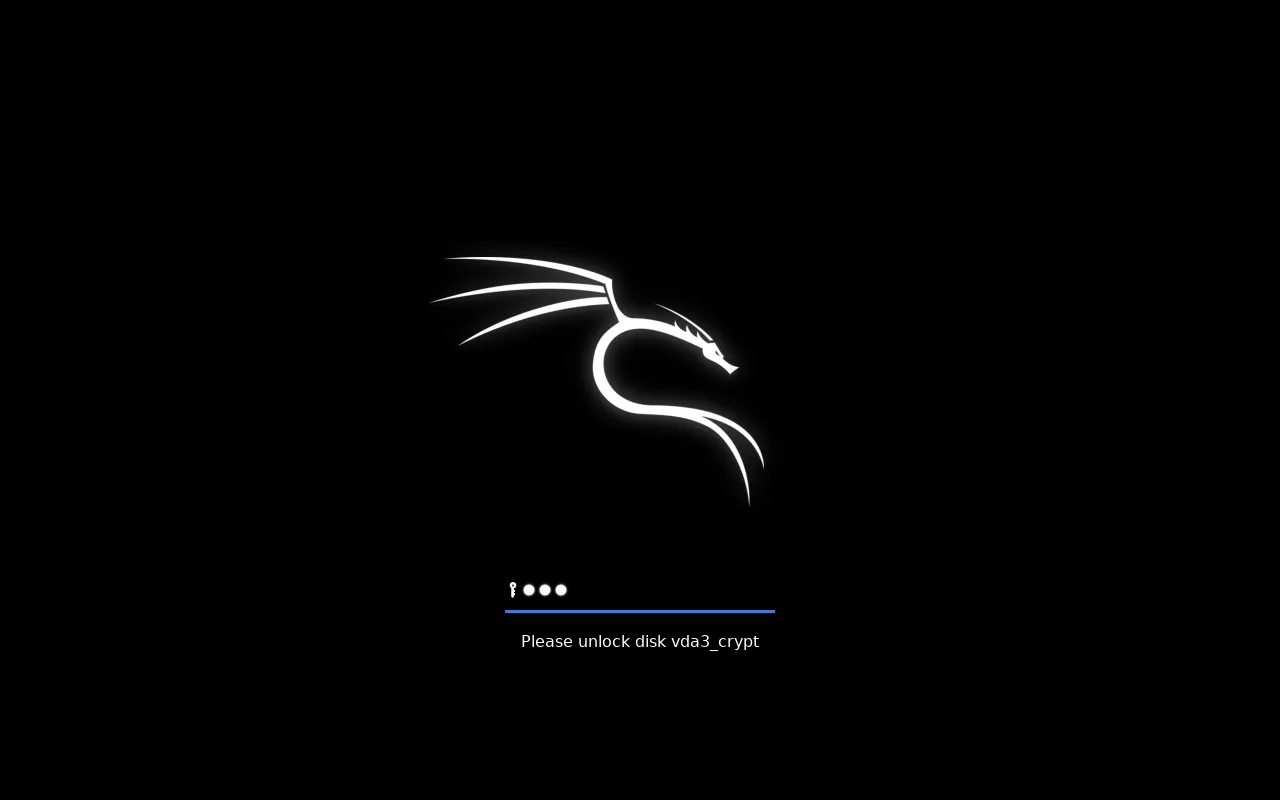
done

What the fuck?

Before I started this guide, I was unsure whether I should write it or not. I mean, using a GUI to install is really easy and doesn’t seem to need a guide. But when I tried to install it, I found the Debian installer to be quite challenging and hard to use. Like Linus Torvalds said, The Debian installer is really hard to use.

So, I decided to write this guide to help you install Kali Linux with LVM and LUKS encryption.

I did a lot of research on Kali Linux LVM installation with LUKS, but unfortunately, I couldn’t find any articles or guides available online. I had to figure it out on my own. Two weeks ago, I spent a day and a half trying to figure out how to install Kali Linux with LVM and LUKS. Now, I’m sharing my experience with you! :)

Let’s Get Started

I won’t go through the very basics, like how to download the ISO, create a bootable USB, boot from the USB, or set up a new VM. I’ll start from the boot screen of the Kali Linux installer, and this will be my starting point.
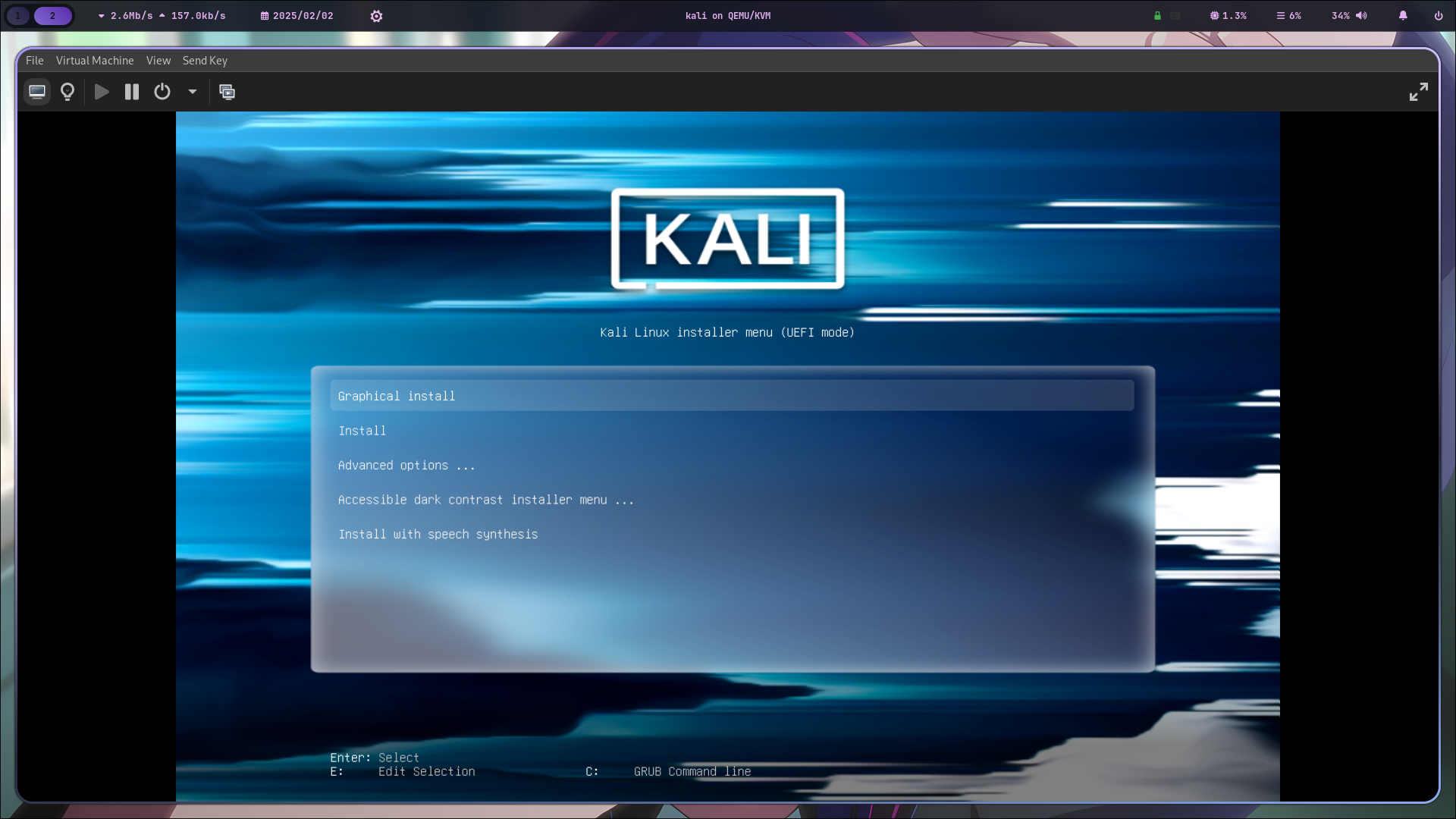
started

1. Basic Setup

The basic setup should be pretty easy—just follow the instructions on the screen. You’ll need to configure a few things like the language, location, keyboard layout, network settings, user account, and password. Just take it step by step, and you’ll be good to go!

![Select a language](https://dl.ummit.dev/Kali-manual-lvm-installation-guide/1_basic/1_Select a language.png)

![Select your location](https://dl.ummit.dev/Kali-manual-lvm-installation-guide/1_basic/2_Select your location.png)

![Configure locales](https://dl.ummit.dev/Kali-manual-lvm-installation-guide/1_basic/3_Configure locales.png)

![Configure the keyboard](https://dl.ummit.dev/Kali-manual-lvm-installation-guide/1_basic/4_Configure the keyboard.png)

![Load installer components from installation media](https://dl.ummit.dev/Kali-manual-lvm-installation-guide/1_basic/5_Load installer components from installation media.png)

![Configure the network](https://dl.ummit.dev/Kali-manual-lvm-installation-guide/1_basic/6_Configure the network.png)

![Set up users and passwords 1](https://dl.ummit.dev/Kali-manual-lvm-installation-guide/1_basic/8_1_Set up users and passwords.png) ![Set up users and passwords 2](https://dl.ummit.dev/Kali-manual-lvm-installation-guide/1_basic/8_2_Set up users and passwords.png) ![Set up users and passwords 3](https://dl.ummit.dev/Kali-manual-lvm-installation-guide/1_basic/8_3_Set up users and passwords.png)

![Detect partition disks](https://dl.ummit.dev/Kali-manual-lvm-installation-guide/2_partition/1_detect partition disks.png)

2. Partition Disks and Configure LVM

This is the most important part of this guide. I will show you a very detailed step to create an LVM partition with LUKS encryption. Let’s start by clicking on Manual on the partition disks screen.
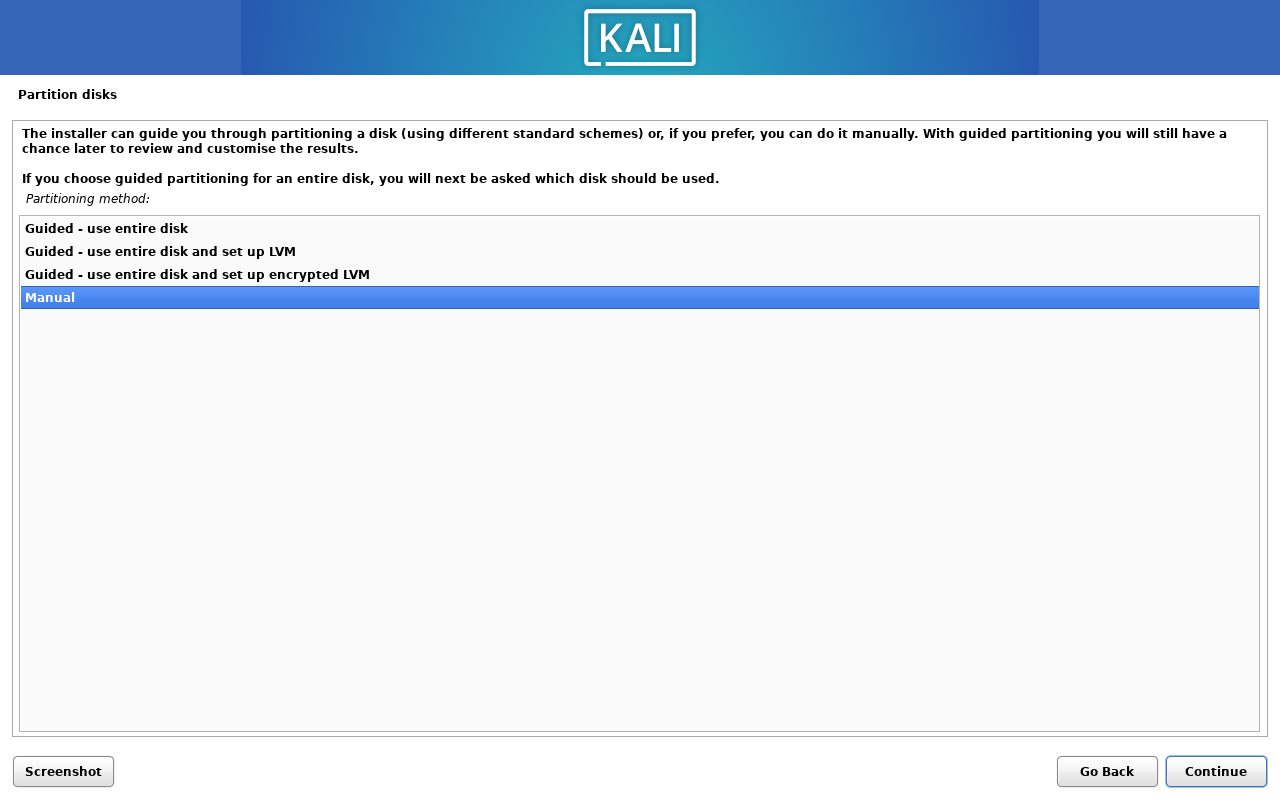
Manual partitioning

2.1. GPT Partition Table Creation

Since I was using a KVM virtual machine, this is the initial partition choice screen. Go ahead and click on Virtual disk 1 (vda).

![Initial partition choice 1](https://dl.ummit.dev/Kali-manual-lvm-installation-guide/2_partition/3_initial partition choice.png)

Now, it will ask you if you want to create a new empty partition table on this device. Click on Yes.

![Initial partition choice 2](https://dl.ummit.dev/Kali-manual-lvm-installation-guide/2_partition/3_2_initial partition choice.png)

You should now see a new free space partition table created on the device. Click on this free space, and we will proceed to create a new partition.

![Select new block device](https://dl.ummit.dev/Kali-manual-lvm-installation-guide/2_partition/4_select new block device.png)

2.2. Create ESP Partition

Kali Linux, also known as the Debian installer, requires an EFI System Partition (ESP) to be created. Unlike Arch, where the EFI and boot partitions can be combined, we will create a separate partition for the EFI. Click on Create a new partition and use the following settings:

![Create ESP 1](https://dl.ummit.dev/Kali-manual-lvm-installation-guide/2_partition/5_1_ESP create.png)

For safety, I will create a 1G partition for the ESP partition, type in 1GB and click on Continue.

![Create ESP 2](https://dl.ummit.dev/Kali-manual-lvm-installation-guide/2_partition/5_2_ESP create.png)

for the Beginning or End of this space, choose Beginning and click on Continue.

![Create ESP 3](https://dl.ummit.dev/Kali-manual-lvm-installation-guide/2_partition/5_3_ESP create.png)

Now, we need to choose the partition type, by clicking on Use as.

![Create ESP 4](https://dl.ummit.dev/Kali-manual-lvm-installation-guide/2_partition/5_4_ESP create.png)

Choose EFI System Partition and click on Done setting up the partition.

![Create ESP 5](https://dl.ummit.dev/Kali-manual-lvm-installation-guide/2_partition/5_5_ESP create.png)

And now, click on Done setting up the partition to finish the ESP partition creation.

![Create ESP 6](https://dl.ummit.dev/Kali-manual-lvm-installation-guide/2_partition/5_6_ESP create.png)

And you should see the new ESP partition created!

![Create ESP 7](https://dl.ummit.dev/Kali-manual-lvm-installation-guide/2_partition/5_7_ESP create.png)

2.3. Create BOOT Partition

Now, we will create a new partition for the boot partition. Click on FREE SPACE.

![Create BOOT 1](https://dl.ummit.dev/Kali-manual-lvm-installation-guide/2_partition/6_1_BOOT create.png)

Click on Create a new partition.

![Create BOOT 2](https://dl.ummit.dev/Kali-manual-lvm-installation-guide/2_partition/6_2_BOOT create.png)

Same as the ESP partition, I will create a 1G partition for the BOOT partition, type in 1GB and click on Continue.

![Create BOOT 3](https://dl.ummit.dev/Kali-manual-lvm-installation-guide/2_partition/6_3_BOOT create.png)

Choose Beginning and click on Continue.

![Create BOOT 4](https://dl.ummit.dev/Kali-manual-lvm-installation-guide/2_partition/6_4_BOOT create.png)

Again, click on Use as, but this time choose Ext2 file system as filesystem.

![Create BOOT 5](https://dl.ummit.dev/Kali-manual-lvm-installation-guide/2_partition/6_5_BOOT create.png)

Now, setting the mount point, click on Mount point.

![Create BOOT 6](https://dl.ummit.dev/Kali-manual-lvm-installation-guide/2_partition/6_6_BOOT create.png)

Choose /boot as the mount point.

![Create BOOT 7](https://dl.ummit.dev/Kali-manual-lvm-installation-guide/2_partition/6_7_BOOT create.png)

Click on Done setting up the partition to finish the BOOT partition creation.

![Create BOOT 8](https://dl.ummit.dev/Kali-manual-lvm-installation-guide/2_partition/6_8_BOOT create.png)

And you should see the new BOOT partition created! Keep going, you are almost there!

![Create BOOT 9](https://dl.ummit.dev/Kali-manual-lvm-installation-guide/2_partition/6_9_BOOT create.png)

2.4. Create LVM Partition

This is the most anonying part of setting up LVM partition. Click on Create a new partition.

![](https://dl.ummit.dev/Kali-manual-lvm-installation-guide/2_partition/6_9_BOOT create.png)

Click Create a new partition again.

![Create LVM 1](https://dl.ummit.dev/Kali-manual-lvm-installation-guide/2_partition/7_1_LVM create.png)

As the example, i use 100% of the remaining space for the LVM partition, type in 100% or press the Enter key as the default value and click on Continue.

![Create LVM 2](https://dl.ummit.dev/Kali-manual-lvm-installation-guide/2_partition/7_2_LVM create.png)

NOT GOOD IMAGE: The image of this should be label as the Use as.

Click on Use as.

![Create LVM 3](https://dl.ummit.dev/Kali-manual-lvm-installation-guide/2_partition/7_3_LVM create.png)

Choose physical volume for lvm.

![Create LVM 4](https://dl.ummit.dev/Kali-manual-lvm-installation-guide/2_partition/7_4_LVM create.png)

Click on Done setting up the partition to finish the LVM partition creation.

![Create LVM 5](https://dl.ummit.dev/Kali-manual-lvm-installation-guide/2_partition/7_5_LVM create.png)

The new LVM partition is created! Now, we will configure the Logical Volume Manager.

![Create LVM 6](https://dl.ummit.dev/Kali-manual-lvm-installation-guide/2_partition/7_6_LVM create.png)

2.5 Configure encrypted volumes

We now will setting up the LUKS encryption for the LVM partition. Click on Configure encrypted volumes.

![Configure encrypted volumes 1](https://dl.ummit.dev/Kali-manual-lvm-installation-guide/2_partition/8_1_Configure encrypted volumes.png)

Click on Yes to write the changes to the disk.

![Configure encrypted volumes 2](https://dl.ummit.dev/Kali-manual-lvm-installation-guide/2_partition/8_2_Configure encrypted volumes.png)

Click on Create encrypted volumes.

![Configure encrypted volumes 3](https://dl.ummit.dev/Kali-manual-lvm-installation-guide/2_partition/8_3_Configure encrypted volumes.png)

Select the LVM partition, and click on Continue.

![Configure encrypted volumes 4](https://dl.ummit.dev/Kali-manual-lvm-installation-guide/2_partition/8_4_Configure encrypted volumes.png)

Click Done setting up the partition.

![Configure encrypted volumes 5](https://dl.ummit.dev/Kali-manual-lvm-installation-guide/2_partition/8_5_Configure encrypted volumes.png)

Click Finish to finish the encrypted volumes configuration.

![Configure encrypted volumes 6](https://dl.ummit.dev/Kali-manual-lvm-installation-guide/2_partition/8_6_Configure encrypted volumes.png)

The installer will ask you do you want to earse the data on the partition, you can skip this step by clicking on No.

![Configure encrypted volumes 7](https://dl.ummit.dev/Kali-manual-lvm-installation-guide/2_partition/8_7_Configure encrypted volumes.png)

enter your preferred password for the LUKS encryption, and click on Continue.

![LVM password 1](https://dl.ummit.dev/Kali-manual-lvm-installation-guide/2_partition/9_1_LVM password.png)

If your password is less than 8 characters, the installer will ask you to confirm the password, in my case, i dont care, this virtual machine is just for the guide. so click on Continue.

![LVM password 2](https://dl.ummit.dev/Kali-manual-lvm-installation-guide/2_partition/9_2_LVM password.png)

2.6. Configure the Logical Volume Manager

This part is about configuring the Logical Volume Manager (LVM). Click on Configure the Logical Volume Manager.

![Configure the Logical Volume Manager 1](https://dl.ummit.dev/Kali-manual-lvm-installation-guide/2_partition/10_1_Configure the Logical Volume Manager.png)

Will asking you to create a new volume group, and write the change to the disk, click on Yes.

![Configure the Logical Volume Manager 2](https://dl.ummit.dev/Kali-manual-lvm-installation-guide/2_partition/10_2_Configure the Logical Volume Manager.png)

Click on Create volume group.

![Create volume group 1](https://dl.ummit.dev/Kali-manual-lvm-installation-guide/2_partition/11_1_Create volume group.png)

Type the name of the volume group you want to naming, i use kali as the name, and click on Continue.

![Create volume group 2](https://dl.ummit.dev/Kali-manual-lvm-installation-guide/2_partition/11_2_Create volume group.png)

Find out the device you want to add for this volume group, and check the box, and click on Continue.

![Create volume group 3](https://dl.ummit.dev/Kali-manual-lvm-installation-guide/2_partition/11_3_Create volume group.png)

Click on Yes to write the change to the disk.

![Create volume group 4](https://dl.ummit.dev/Kali-manual-lvm-installation-guide/2_partition/11_4_Create volume group.png)

To verify the volume group is created, click on Display configuration details.

![Create volume group 5](https://dl.ummit.dev/Kali-manual-lvm-installation-guide/2_partition/11_5_Create volume group.png)

Nice, the volume group is created! Now, we will create the logical volume for the swap partition.

![Create volume group 6](https://dl.ummit.dev/Kali-manual-lvm-installation-guide/2_partition/11_6_Create volume group.png)

2.7. Create Logical Volume for Swap Partition

Click on Create logical volume. we will create two logical volumes, one for the swap partition and the other for the root partition.

You might want to create home partition, but i dont create it because i dont need it.

![Create logical volume swap 1](https://dl.ummit.dev/Kali-manual-lvm-installation-guide/2_partition/12_1_Create logical volume swap.png)

Select the volume group that before you created, and click on Continue.

![Create logical volume swap 2](https://dl.ummit.dev/Kali-manual-lvm-installation-guide/2_partition/12_2_Create logical volume swap.png)

Type the name of the logical volume, i use swap as the name, and type the size of the logical volume.

![Create logical volume swap 3](https://dl.ummit.dev/Kali-manual-lvm-installation-guide/2_partition/12_3_Create logical volume swap.png)

Type a size for the swap partition, i use 10GB as the size, and click on Continue.

![Create logical volume swap 4](https://dl.ummit.dev/Kali-manual-lvm-installation-guide/2_partition/12_4_Create logical volume swap.png)

To verify the logical volume is created, click on Display configuration details.

![Create logical volume swap 5](https://dl.ummit.dev/Kali-manual-lvm-installation-guide/2_partition/12_5_Create logical volume swap.png)

Nice, the logical volume for the swap partition is created! Now, we will create the logical volume for the root partition.

![Create logical volume swap 6](https://dl.ummit.dev/Kali-manual-lvm-installation-guide/2_partition/12_6_Create logical volume swap.png)

2.8. Create Logical Volume for Root Partition

Click on Create logical volume.

![Create logical volume root 1](https://dl.ummit.dev/Kali-manual-lvm-installation-guide/2_partition/13_1_Create logical volume root.png)

Select the volume group that before you created, and click on Continue.

![Create logical volume root 2](https://dl.ummit.dev/Kali-manual-lvm-installation-guide/2_partition/13_2_Create logical volume root.png)

Type the name of the logical volume, i use root as the name.

![Create logical volume root 3](https://dl.ummit.dev/Kali-manual-lvm-installation-guide/2_partition/13_3_Create logical volume root.png)

Type a size for the root partition, i use 100% as the size, for the maximum size you also can enter to use the default value, and click on Continue.

![Create logical volume root 4](https://dl.ummit.dev/Kali-manual-lvm-installation-guide/2_partition/13_4_Create logical volume root.png)

To verify the logical volume is created, click on Display configuration details.

![Create logical volume root 5](https://dl.ummit.dev/Kali-manual-lvm-installation-guide/2_partition/13_5_Create logical volume root.png)

Nice, the logical volume for the root partition is created! Now, we will format the LVM partitions.

![Create logical volume root 6](https://dl.ummit.dev/Kali-manual-lvm-installation-guide/2_partition/13_6_Create logical volume root.png)

Click the Finish button to finish the partitioning.

![Create logical volume root 7](https://dl.ummit.dev/Kali-manual-lvm-installation-guide/2_partition/13_7_Create logical volume root.png)

2.9. Format LVM Partitions

The following partition of correct format is important, you should see a similar screen table as below :)

now, we will format the logical volume for the root partition and the swap partition make it useable.

![Create logical volume root 8](https://dl.ummit.dev/Kali-manual-lvm-installation-guide/2_partition/13_8_Create logical volume root.png)

Use arrow keys to select the root partition, and press Enter.

![Format LVM root 1](https://dl.ummit.dev/Kali-manual-lvm-installation-guide/2_partition/14_1_format LVM root.png)

Click on Use as.

![Format LVM root 2](https://dl.ummit.dev/Kali-manual-lvm-installation-guide/2_partition/14_2_format LVM root.png)

Choose Ext4 journaling file system as the filesystem, and click on Done setting up the partition.

NOTE: You also can choose btrfs as the filesystem, which also a good choice for the snapshot filesystem, but i choose ext4 because it is just for this guide.

![Format LVM root 3](https://dl.ummit.dev/Kali-manual-lvm-installation-guide/2_partition/14_3_format LVM root.png)

Click on Mount point.

![Format LVM root 4](https://dl.ummit.dev/Kali-manual-lvm-installation-guide/2_partition/14_4_format LVM root.png)

Choose / as the mount point with root filesystem.

![Format LVM root 5](https://dl.ummit.dev/Kali-manual-lvm-installation-guide/2_partition/14_5_format LVM root.png)

Click on Done setting up the partition to finish the root partition format.

![Format LVM root 6](https://dl.ummit.dev/Kali-manual-lvm-installation-guide/2_partition/14_6_format LVM root.png)

You should see the root partition is mounted with d label as /.

![Format LVM root 7](https://dl.ummit.dev/Kali-manual-lvm-installation-guide/2_partition/14_7_format LVM root.png)

Now, we will format the logical volume for the swap partition, select the swap partition, and press Enter.

![Format LVM swap 1](https://dl.ummit.dev/Kali-manual-lvm-installation-guide/2_partition/15_1_format LVM swap.png)

Click on Use as. Our swap partition will be used as a swap area.

![Format LVM swap 2](https://dl.ummit.dev/Kali-manual-lvm-installation-guide/2_partition/15_2_format LVM swap.png)

Choose swap area as the filesystem.

![Format LVM swap 3](https://dl.ummit.dev/Kali-manual-lvm-installation-guide/2_partition/15_3_format LVM swap.png)

Click on Done setting up the partition to finish the swap partition format.

![Format LVM swap 4](https://dl.ummit.dev/Kali-manual-lvm-installation-guide/2_partition/15_4_format LVM swap.png)

And yes! our table is ready to use !!!

![Format LVM swap 5](https://dl.ummit.dev/Kali-manual-lvm-installation-guide/2_partition/15_5_format LVM swap.png)

2.10. Write the changes to the disk

Now, the partitioning is done, click on Finish partitioning and write changes to disk.

![Partition finished 1](https://dl.ummit.dev/Kali-manual-lvm-installation-guide/2_partition/16_1_Parition finished.png)

Click on Yes to write the changes to the disk.

![Partition finished 2](https://dl.ummit.dev/Kali-manual-lvm-installation-guide/2_partition/16_2_Parition finished.png)

The installer will start to install the base system. just wait for a while.

![Install the base system](https://dl.ummit.dev/Kali-manual-lvm-installation-guide/3_install/1_Install the base system.png)

3. Software Selection

Select the software you want to install, mostly the default option is good enough, but find one that suits you. the Desktop environment of what you want to use.

![Software selection](https://dl.ummit.dev/Kali-manual-lvm-installation-guide/3_install/2_Software selection.png)

Wait for the installation to finish.

![Select and install software](https://dl.ummit.dev/Kali-manual-lvm-installation-guide/3_install/3_Select and install software.png)

4. Reboot the system

After the installation is finished, click on Continue. you now can try out your new Kali Linux system with rebooting the system.

![Finish the installation 1](https://dl.ummit.dev/Kali-manual-lvm-installation-guide/4_finish/1_1_Finish the installation.png) ![Finish the installation 2](https://dl.ummit.dev/Kali-manual-lvm-installation-guide/4_finish/1_2_Finish the installation.png)

5. Booting the system

After rebooting the system, you will see the GRUB boot loader screen :)
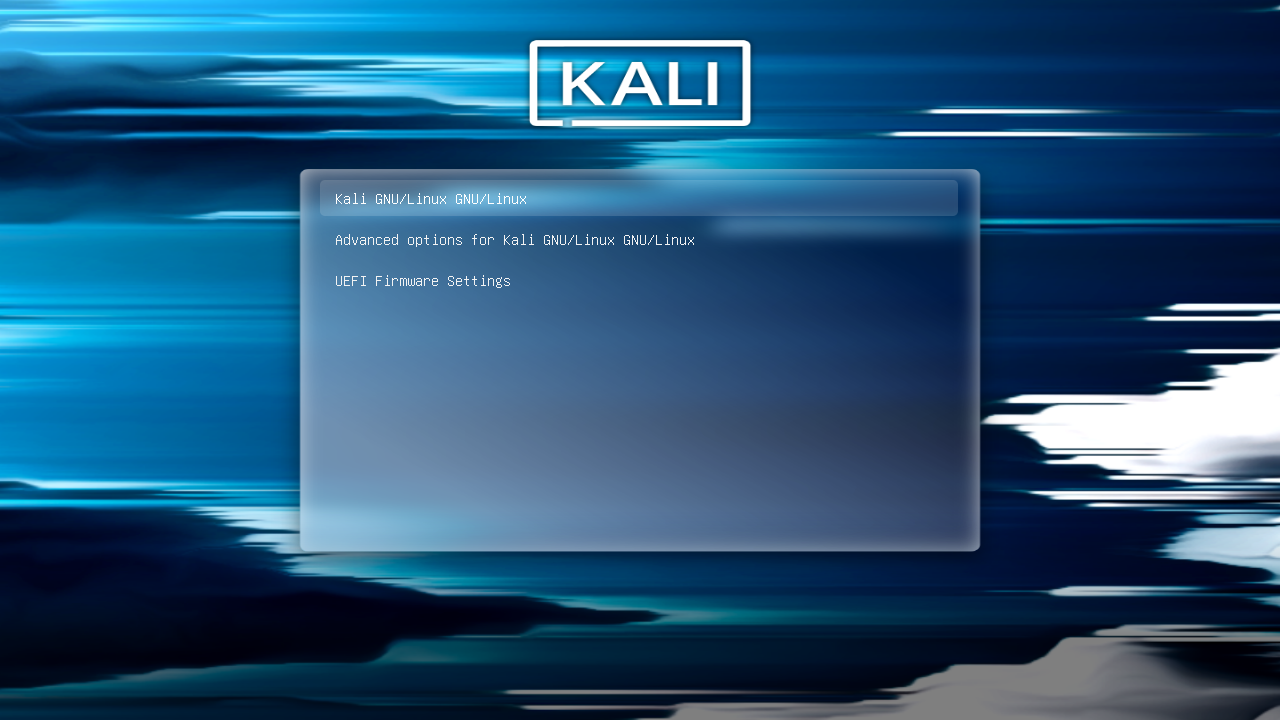
GRUB configuration

6. Unlock LUKS

You will be asked to unlock the LUKS encryption, type in the password you set before, and press Enter.

![Unlock LUKS 1](https://dl.ummit.dev/Kali-manual-lvm-installation-guide/4_finish/3_1_unlock luks.png) ![Unlock LUKS 2](https://dl.ummit.dev/Kali-manual-lvm-installation-guide/4_finish/3_2_unlock luks.png) ![Unlock LUKS 3](https://dl.ummit.dev/Kali-manual-lvm-installation-guide/4_finish/3_3_unlock luks.png)

Login screen 1 Login screen 2

Check the LVM partition

Wow, you have successfully installed Kali Linux with LVM and LUKS encryption! You can check the LVM partition by running the lsblk command.
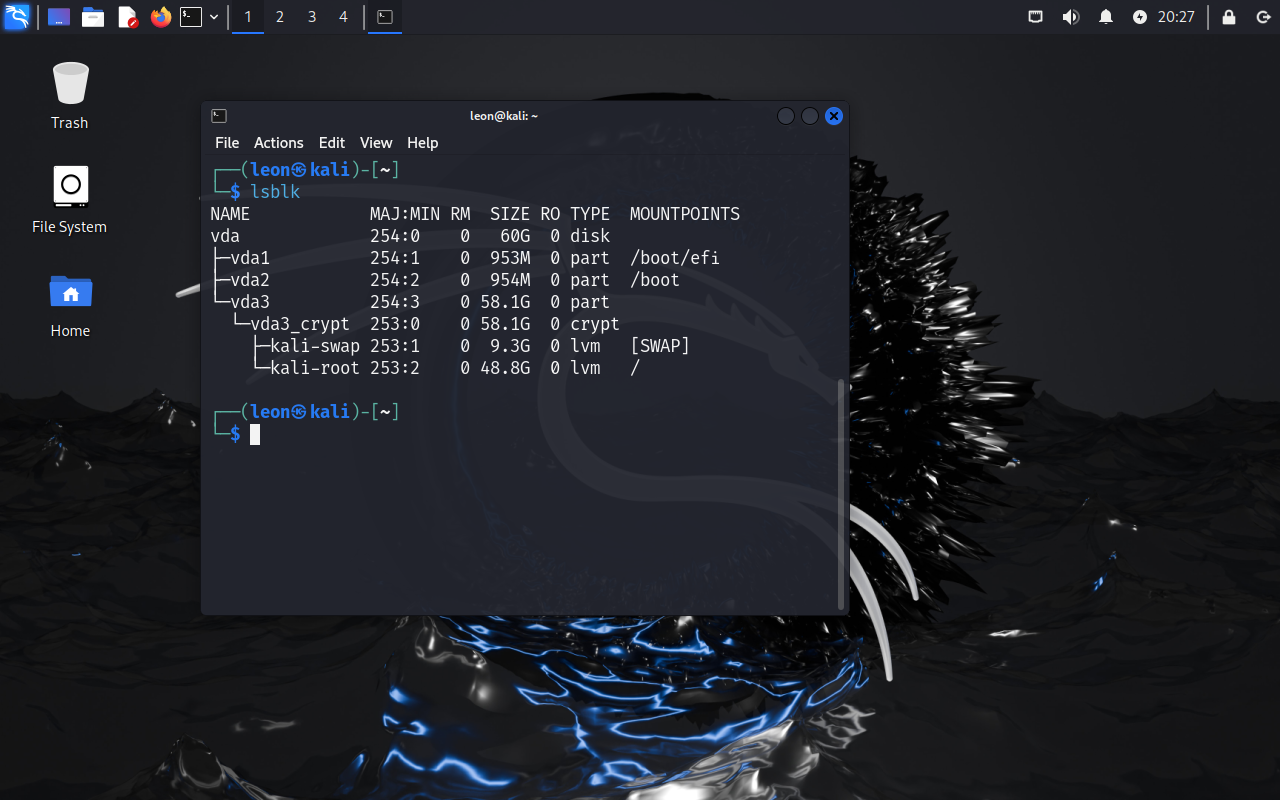
List block devices

My feeling

Debian is harder than Arch Linux to install. I can more confirm I’m cli guy XD