Configuring DNS Over HTTPS (DoH) on your system
· Updated: Dec 3, 2023 · DoH, DNS
Introduction
Securing your DNS (Domain Name System) queries is an essential step in enhancing your online privacy. DNS Over HTTPS (DoH) encrypts your DNS traffic, preventing potential eavesdropping and manipulation. This guide walks you through configuring DoH on any system, such as linux, windows and android.
A simpler explanation is shown in the following diagram:
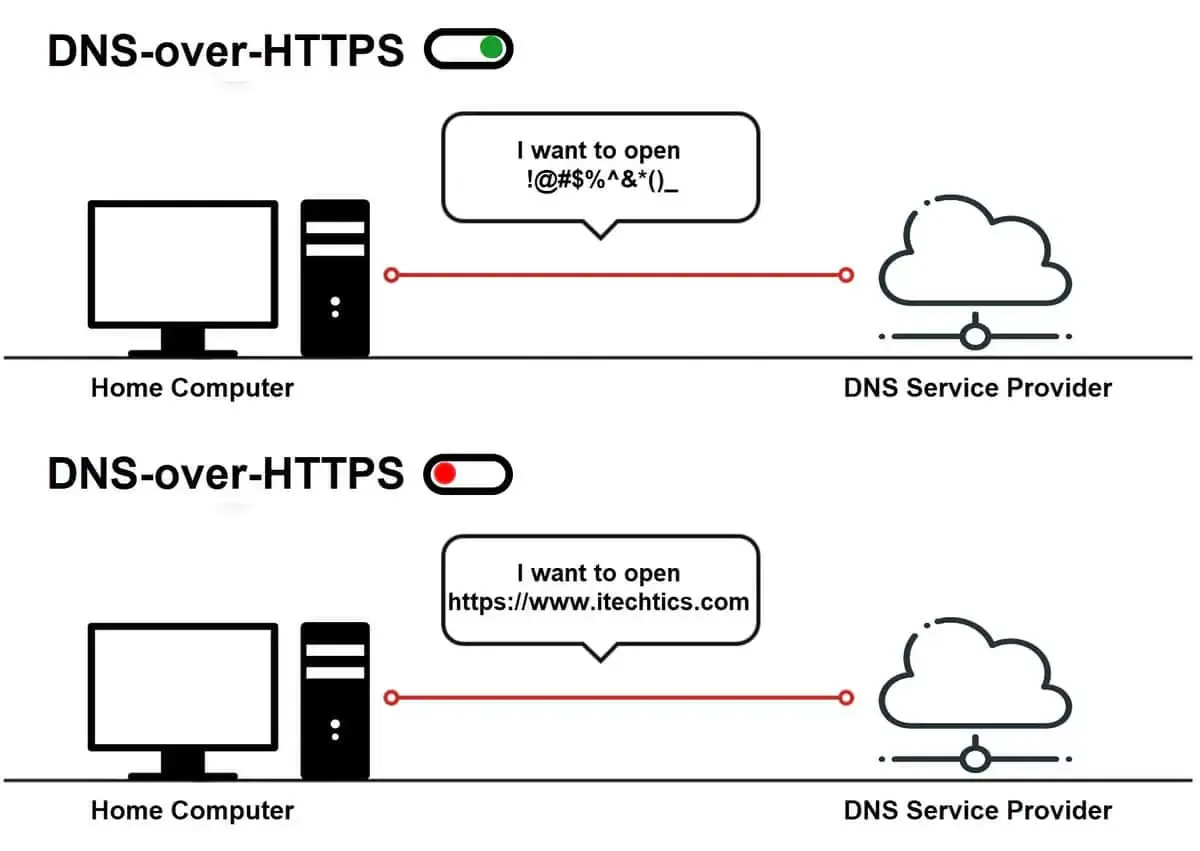
Browser DNS Over HTTPS?
Like Firefox based or chromium based browsers also have an option called “DNS Over HTTPS”, but this will be set to global in this guide, which means that there is no need to set this option to browser, as all web dns are provided by system dns. Not just the browser dns.
DNS Over HTTPS Provider
First of all, you need to find a DNS Over HTTPS (DoH) server provider, I recommend Mullvad DoH. Otherwise this step is just different with the hostname and IP. You can use like IVPN, AdGuard, Google, Cloudflare, NextDNS and others.
Mulvad DoH: Which one good for you?
It depends on your needs, in my case I would use base, honestly I want to watch porn. I’ve tested using all and I can’t access most porn sites. But if you don’t need it, use all.
Then if you only need the DoH functionality, just use dns hahahaha.
dns.mullvad.net
| Hostname | IPV4 | Ads | Trackers | Malware | Adult | Gambling | Social media |
|---|---|---|---|---|---|---|---|
| dns.mullvad.net | 194.242.2.2 | ||||||
| adblock.dns.mullvad.net | 194.242.2.3 | ✅ | ✅ | ||||
| base.dns.mullvad.net | 194.242.2.4 | ✅ | ✅ | ✅ | |||
| extended.dns.mullvad.net | 194.242.2.5 | ✅ | ✅ | ✅ | ✅ | ||
| all.dns.mullvad.net | 194.242.2.9 | ✅ | ✅ | ✅ | ✅ | ✅ | ✅ |
For the github repository see:
{{< github repo=“mullvad/dns-blocklists” >}}
Step-by-Step Guide on Linux (systemd)
{{< alert >}} This steps only works on a systemd init based Linux system. such as arch linux. {{< /alert >}}
-
Enable systemd-resolved and start:
Open a Terminal and ensure that systemd-resolved is enabled and start:
sudo systemctl enable systemd-resolved sudo systemctl start systemd-resolved -
Edit systemd-resolved Configuration:
Edit the systemd-resolved configuration file with your preferred text editor:
sudo nano /etc/systemd/resolved.conf -
Add DoH Servers:
In the opened file, add the following lines at the bottom under [Resolve]. Uncomment (remove #) the line corresponding to your preferred DNS server option:
DNS=194.242.2.4 #base.dns.mullvad.net
DNSSEC=yes
DNSOverTLS=yes
Domains=~.
Note: If you are currently using VPN of your system.
DNSOverTLSshould not be used asyes, set this toopportunistic. If it is set toyes, you won’t able to use network.Note: Enabling DNSSEC is optional, but it may cause issues with websites having incorrect DNSSEC information.
-
Save and Exit:
Save the file by pressing
Ctrl + Oand thenEnter, and then exit withCtrl + X. -
Create Symbolic Link:
Create a symbolic link to the file using the following command in the Terminal:
sudo ln -sf /run/systemd/resolve/stub-resolv.conf /etc/resolv.conf -
Restart systemd-resolved:
Restart systemd-resolved to apply the changes:
sudo systemctl restart systemd-resolved -
Restart NetworkManager:
Restart NetworkManager for the changes to take effect:
sudo systemctl restart NetworkManager -
Restart dhcpcd:
Restart dhcpcd for the changes to ensure take effect:
sudo systemctl restart dhcpcd -
Verify DNS Settings:
Verify the DNS settings with:
resolvectl statusYou should see
Current DNS Server:output is your input IP. -
Test ping response:
If your setup is fine, try pinging any website and you should get a response.
ping gentoo.org -
Test Mullvad DoH works well:
For Mullvad, refer to the official Mullvad website to perform a check. Otherwise, use this command:
resolvectl query gentoo.orgthe output should said:
Data was acquired via local or encrypted transport: yes
Step-by-step instructions on Windows
On Windows, you do not need to use the command line to complete the process. Windows already has a GUI for this process.
-
Accessing Settings: Open the Settings menu on your Windows system. 
-
Navigating to Network & Internet Settings: In the Settings menu, locate and click on
Network & Internet.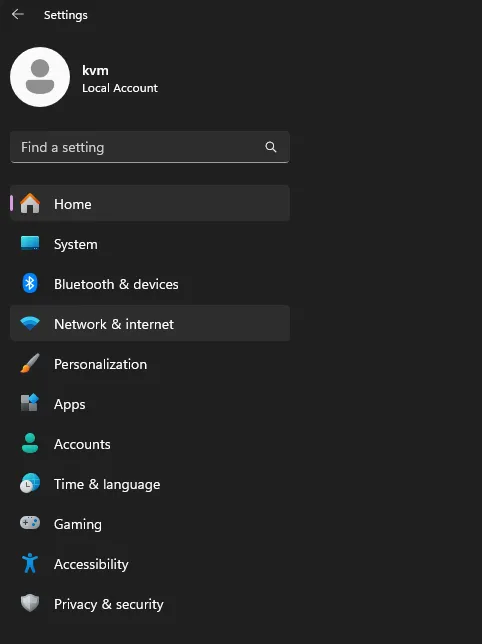
-
Selecting Your Network: Under
Network & Internet, choose your preferred network, typically labeled as Ethernet for wired connections.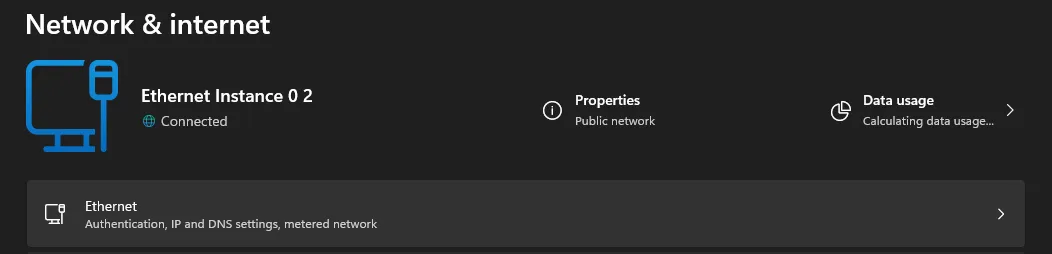
-
Editing DNS Settings: Click on the
Editoption for IP settings, specifically focusing on the IPv4 DNS Server.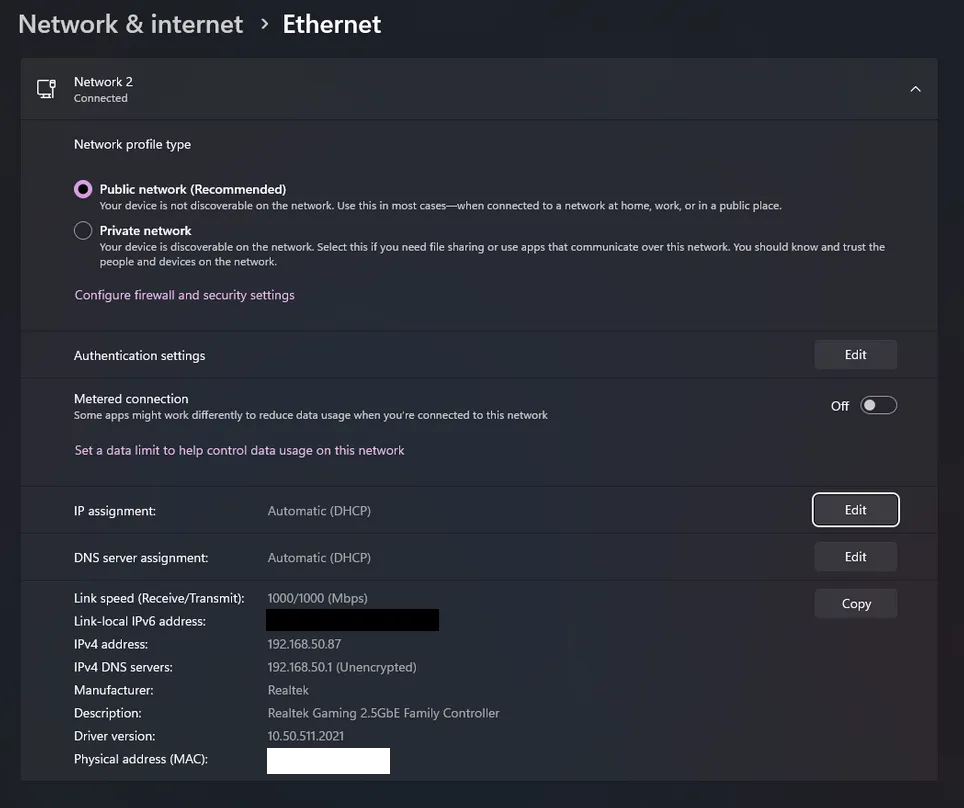
-
Switching to Manual DNS Configuration: Change the DNS configuration from
AutomatictoManual.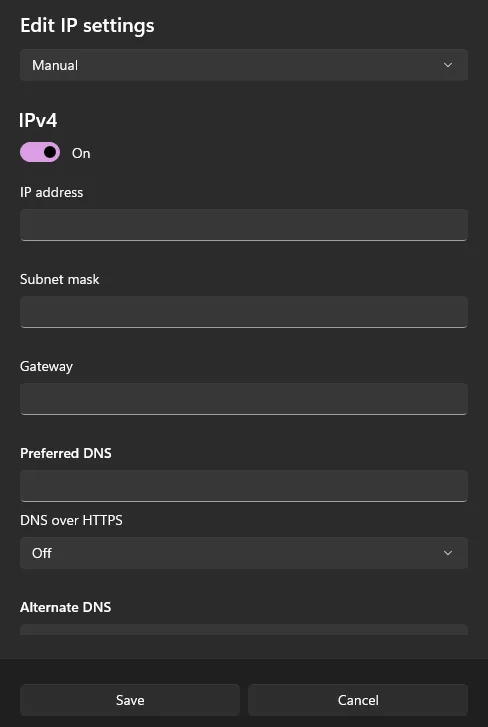
-
Setting Preferred DNS: Update the “Preferred DNS” section with your chosen DNS address. For Windows, use one of the following Mullvad DoH addresses:
- 194.242.2.2 - dns.mullvad.net/dns-query
- 194.242.2.3 - adblock.dns.mullvad.net/dns-query
- 194.242.2.4 - base.dns.mullvad.net/dns-query
- 194.242.2.5 - extended.dns.mullvad.net/dns-query
- 194.242.2.9 - all.dns.mullvad.net/dns-query
-
Activating DNS Over HTTPS: Enable the DNS over HTTPS option.
-
Saving Changes and Adding Alternate DNS: Save your changes. Optionally, you can add an
Alternate DNSusing a different address for redundancy.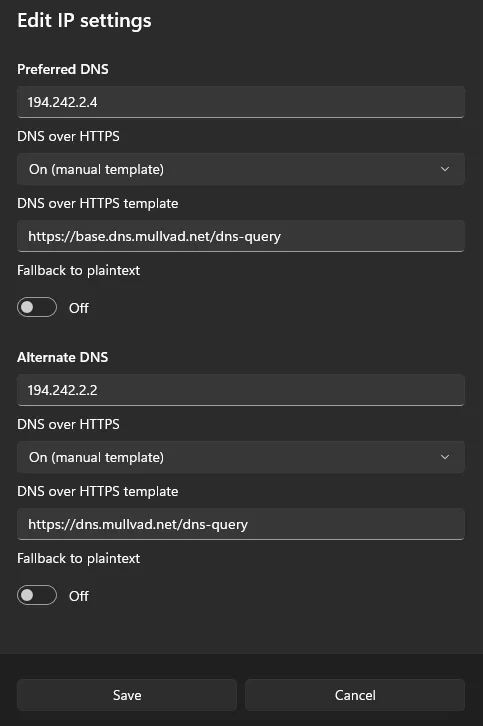
-
Confirming Encryption: After editing, ensure that the “IPv4 DNS Server” displays as
encrypted.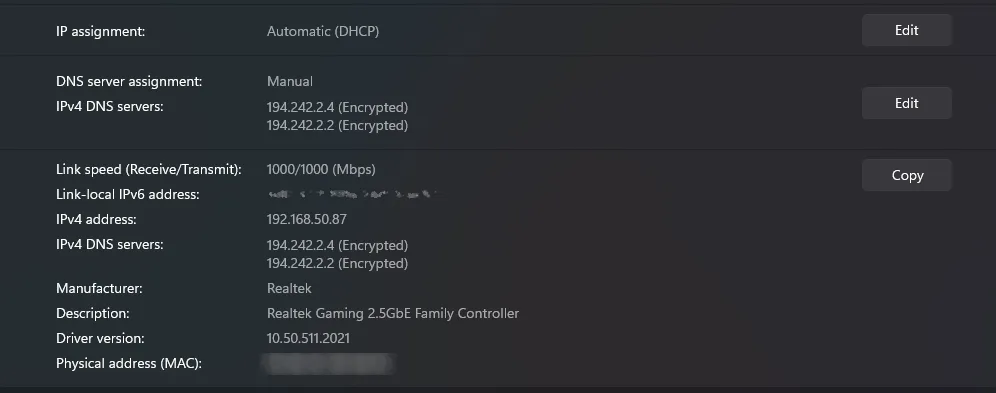
-
Verification: Check the DNS status on Mullvad DNS to confirm that your DNS results are no leaked.
Step-by-step guide for Android
Android is easier. Also has a GUI for it.
- Start
Settingsand click onConnections:
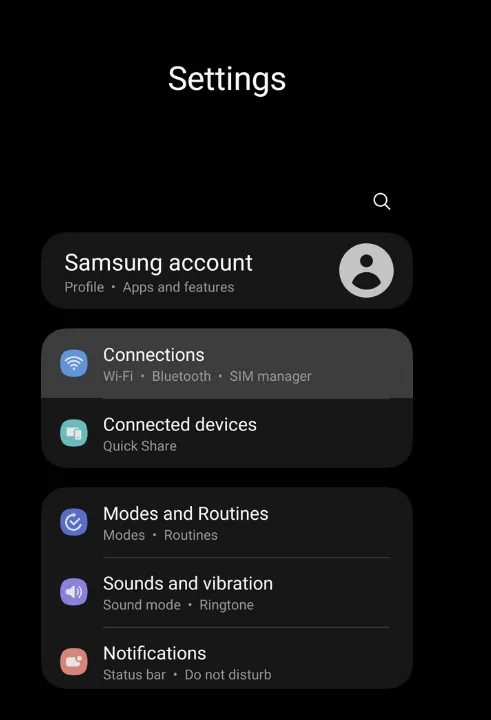
- In
Connectionsclick onMore Connection Settings.

- Click
Private DNS, default isAutomatic.

- Enter your preferred hostname. In this case I will use
base.dns.mullvad.net.

Conclusion
By following these steps, you’ve configured DNS Over HTTPS using systemd-resolved on your system, enhancing your privacy and securing your DNS queries. If you encounter issues, try the opportunistic DoH setting or experiment with different DNS server options.